
Set a favourite limit
Choose how many photos each guest can add to their favourites.
On this page5 sections
Set how many photos each guest can add to their favourites, for example the number of pages in an album. Leave it empty for no limit.
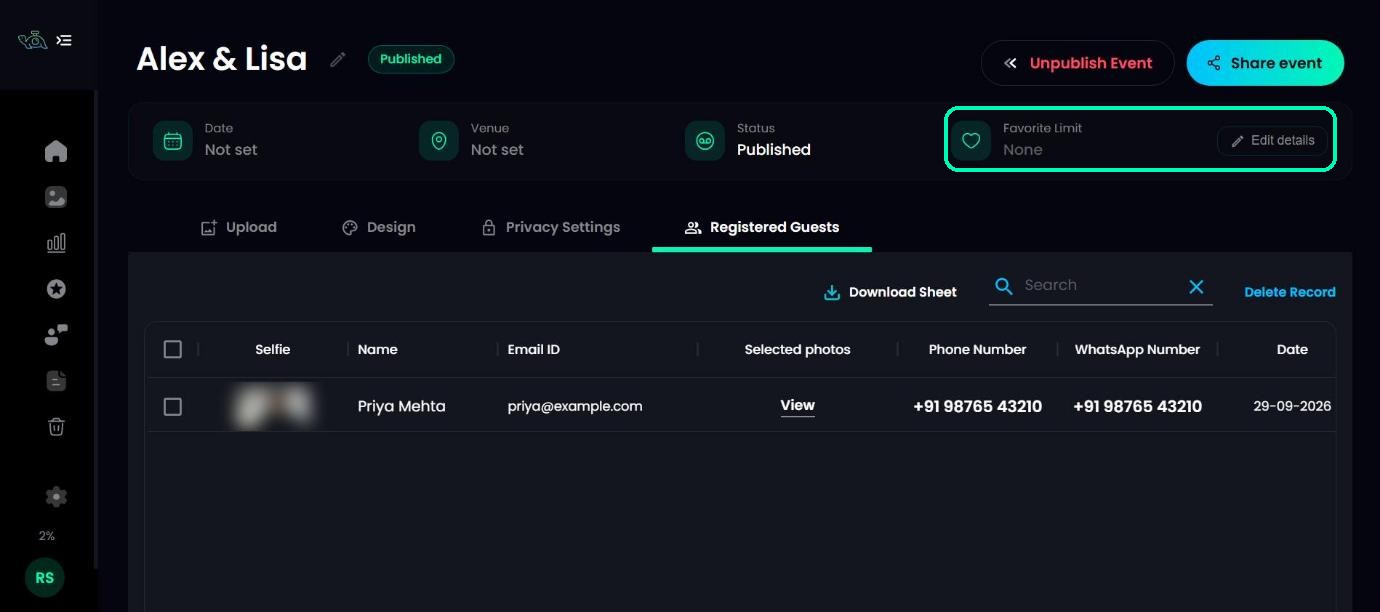
Open Edit details
Open your event and click Edit details at the top. The current limit is shown in the event details as Favorite Limit, or None if there isn’t one.
Enter the limit
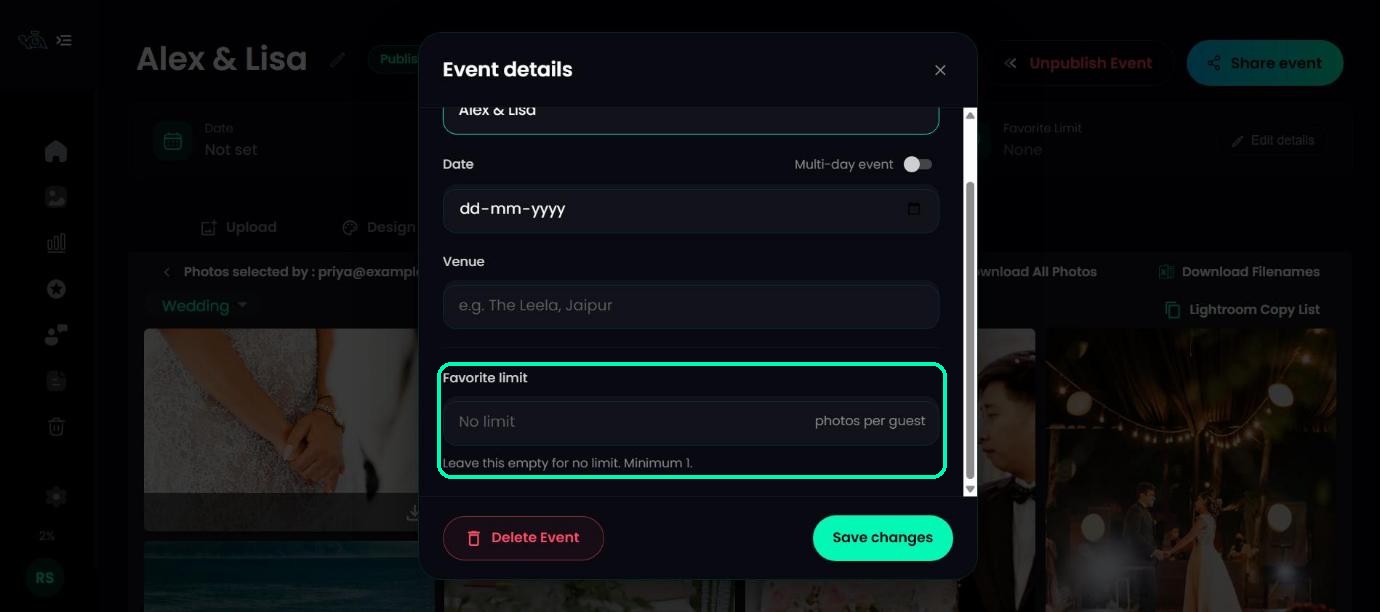
In Favorite limit, enter a whole number of photos per guest (at least 1), or leave it empty for no limit. Save your changes.
Note
The limit covers every folder in the event, and videos don’t count towards it.
What guests see
When a guest reaches the limit, they see You’ve used all {number} favorites. To add another photo, they take one out of their favourites first, or ask you to raise the limit.
Lowering the limit later
If you lower the limit after guests have already picked more, nothing is deleted. Those guests see Your favorites are over the limit and can review their picks.
Was this article helpful?
Your answer helps us improve this guide.
Thanks for letting us know.