
See and download a client’s selected photos
Open any guest’s picks, and download the whole selection as a ZIP.
On this page5 sections
See exactly which photos each client or guest picked, and download them all in one go for editing or album printing.
Before you start
- A guest or client who has picked favourites in your gallery.
- A computer. Registered guests and their selections aren’t available in the mobile view yet.
Open Registered Guests
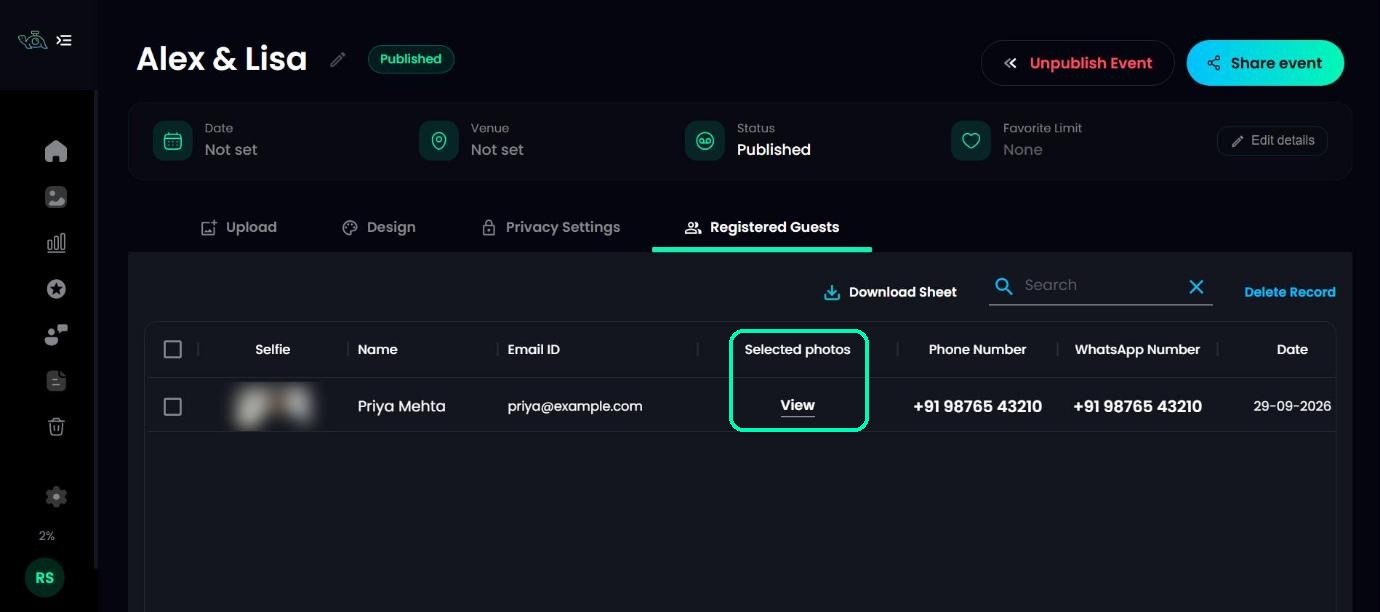
Open your event and click the Registered Guests tab. Each guest who picked favourites has a View link under Selected photos.
Open a guest’s selection
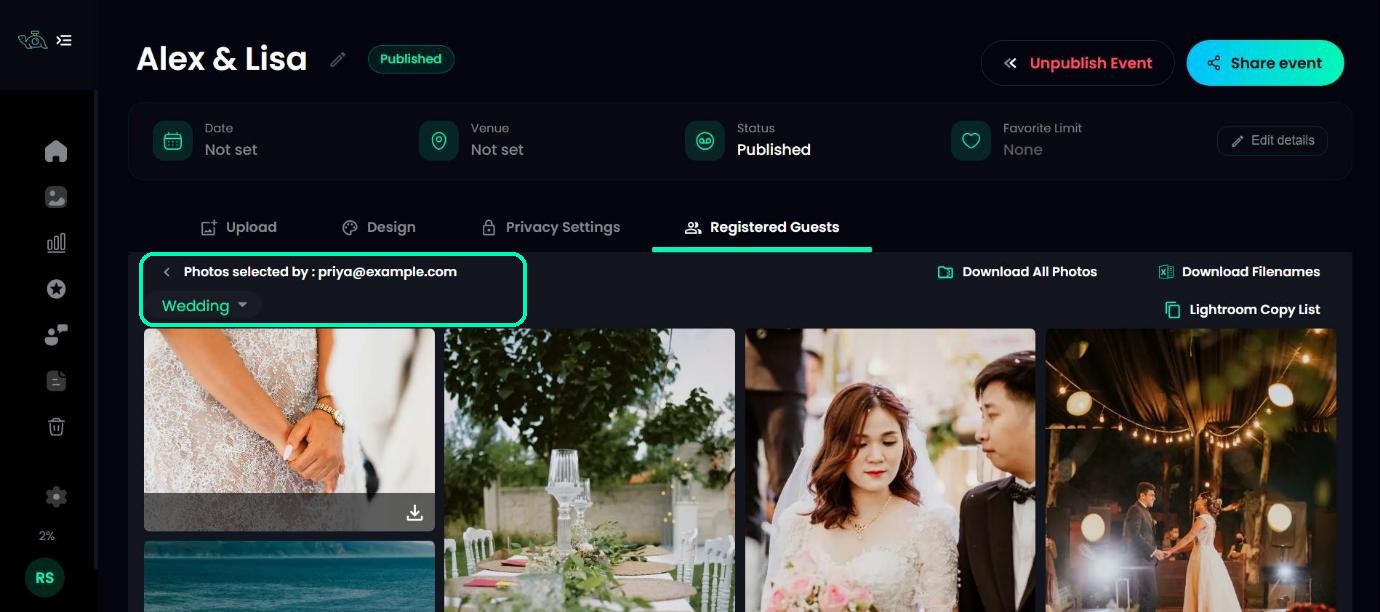
Click View under Selected photos. You’ll see Photos selected by and the guest’s email. Their picks open in a grid. Use the folder menu to switch between folders.
Download the photos
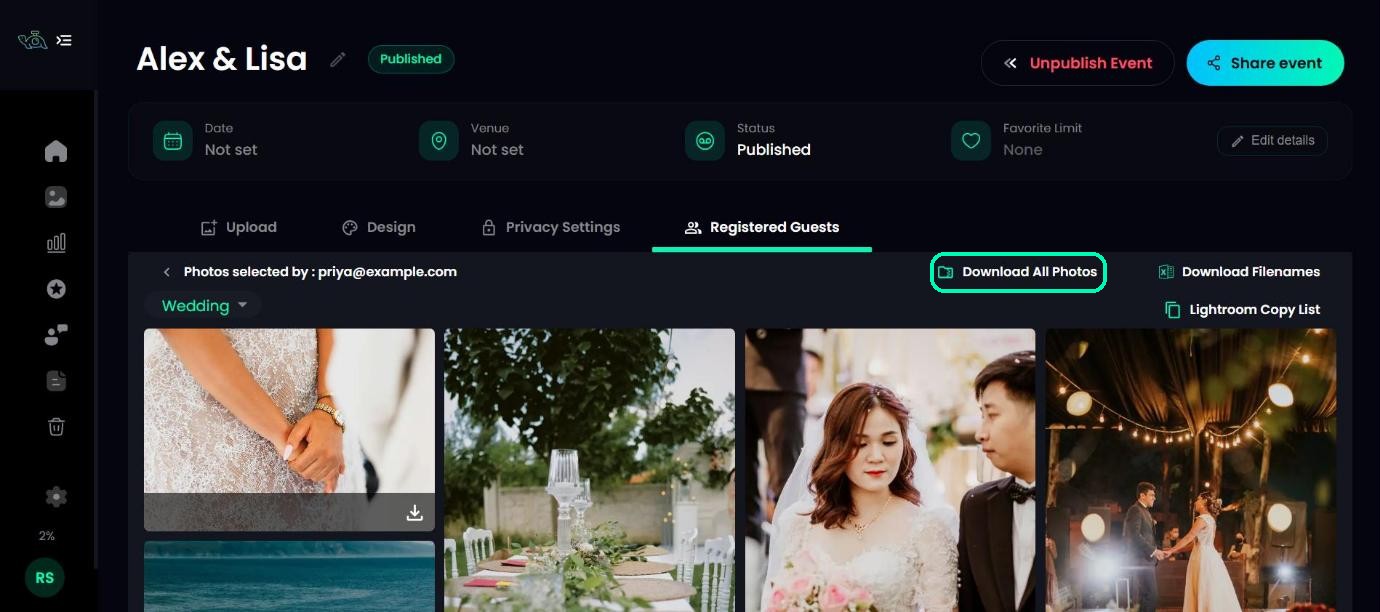
To save a single photo, use its download icon. To get the whole selection, click Download All Photos. You’ll see Request Submitted!, and TurtlePic emails you a download link as soon as the ZIP is ready.
Note
Downloading a guest’s whole selection is part of every paid plan.
Was this article helpful?
Your answer helps us improve this guide.
Thanks for letting us know.