
Migration
How teams move event photos from another system or shared drives to TurtlePic, step by step.
30-minute demo on Google Meet, on your own event photos
Trusted by 1,000+ businesses · 500K+ users · 30+ countries
IN SHORT
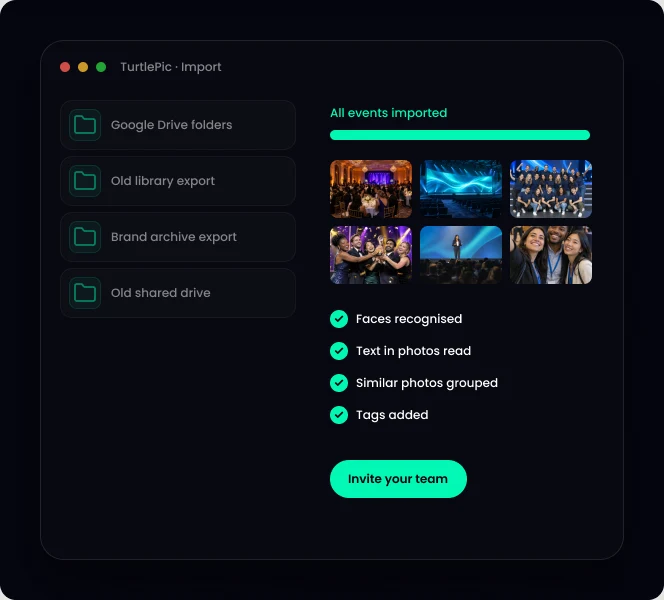
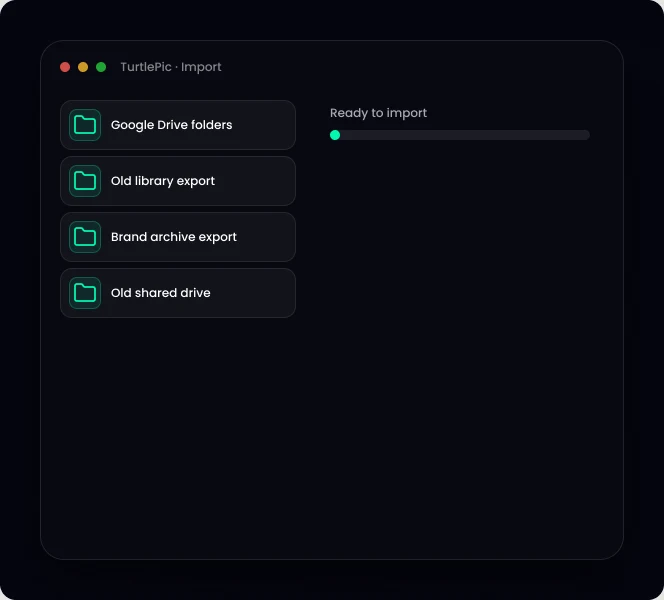
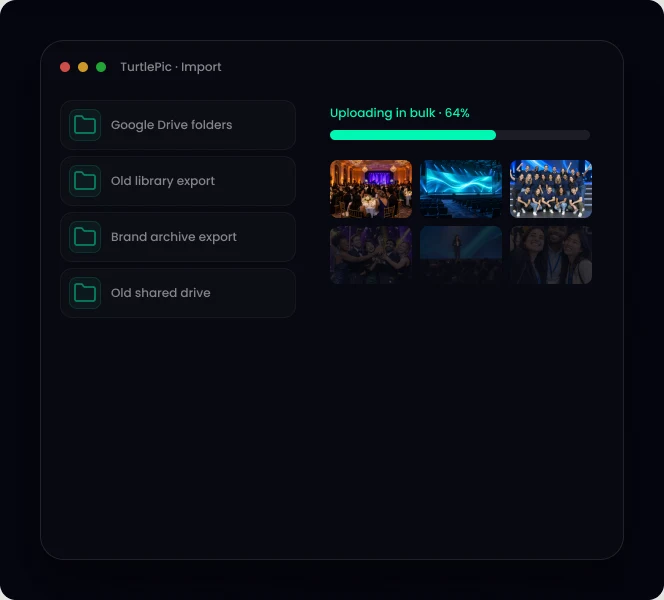
Moving to TurtlePic takes four steps: export from your current system or drive, upload to TurtlePic in bulk, let TurtlePic recognise faces, text and similar photos, then invite your team. You can keep your current system running while you move.

Step 1
Download your photos from your current system or drive.
Step 2
Upload by event, as many photos as you need.
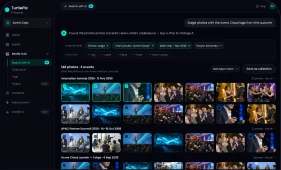
Step 3
Faces, text and similar photos are recognised automatically.
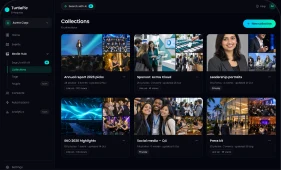
Step 4
Invite your team, set roles and start sharing.
| From | First step | Then in TurtlePic |
|---|---|---|
| Another digital asset management system | Export your photos from your current system | Upload by event |
| Folders on a computer or server | Copy the event folders | Upload by event |
| Google Drive or OneDrive | Download the event folders | Upload; duplicates are grouped |
1
Count the events, photos and storage you want to move.
2
Decide what to keep: old events, duplicates, rejected shots.
3
Agree your tag groups (region, brand, sponsor) before uploading.
4
Move one event first and test search on it.
5
Keep your current system running until your team has switched.
Many teams keep their current system for brand files and move event photos first. Others move everything. Both work with TurtlePic.
Book a migration callBy the numbers
Built by Experts. Trusted by Innovators.

Trusted by 1K+ companies
500K+
Worldwide users
10K+
Events created
99.9%
Accuracy of AI
10M+
Photos found by AI
Most systems let you download or export your photos by album or folder. Then upload them to TurtlePic by event.
Yes. Many teams keep their current system until everyone has switched.
No. TurtlePic recognises faces, text and similar photos automatically, and you can add your own tags in bulk.
It depends on how many photos you move. Book a migration call and we will plan it with you.
Tell us where your photos are today and we will map out the move.
Book a demo30-minute call on Google Meet · pick a time that suits you