
Understand your Insights
What each Insights tab shows, the date ranges and plans, and what the dashboard tiles count.
On this page6 sections
Insights shows how guests use your galleries: how many open them, search for themselves with a selfie, download photos, and which events do best. Here’s what’s in each part.
Open Insights
Click Insights in the left sidebar. You can also click View All next to the Insights tiles on your dashboard Home.
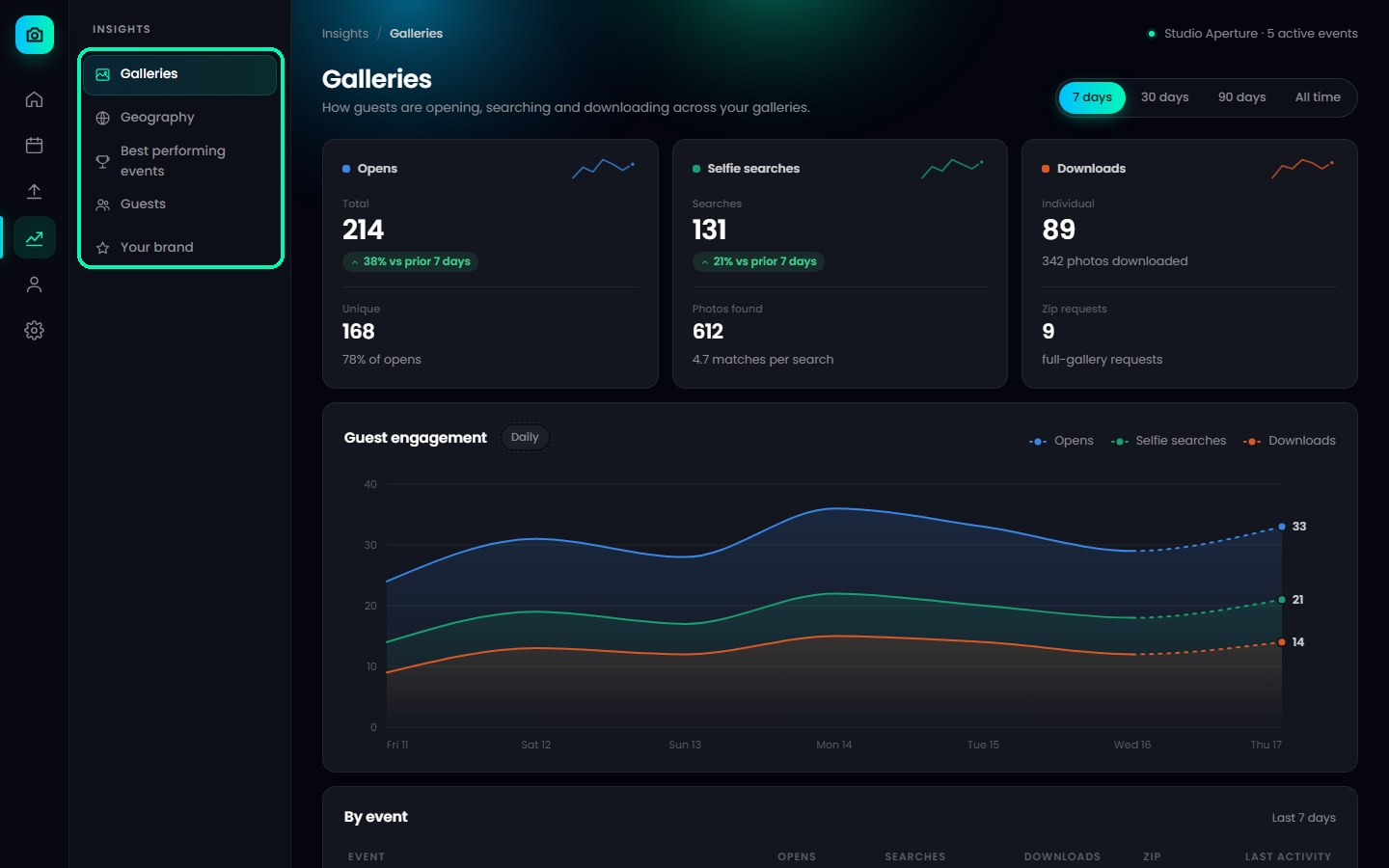
Pick a tab
Insights has six tabs:
- Galleries – opens, selfie searches and downloads across all your galleries. On every plan.
- Best performing events – your events ranked on different measures. every paid plan.
- Guests – the guests who found the most photos, and your repeat guests. every paid plan.
- Your brand – social link clicks and enquiries. Standard, Pro and Elite plans.
- Geography – where in the world your galleries are opened. Standard, Pro and Elite plans.
- WhatsApp broadcasts – delivery and read results for your broadcasts. Every paid plan.
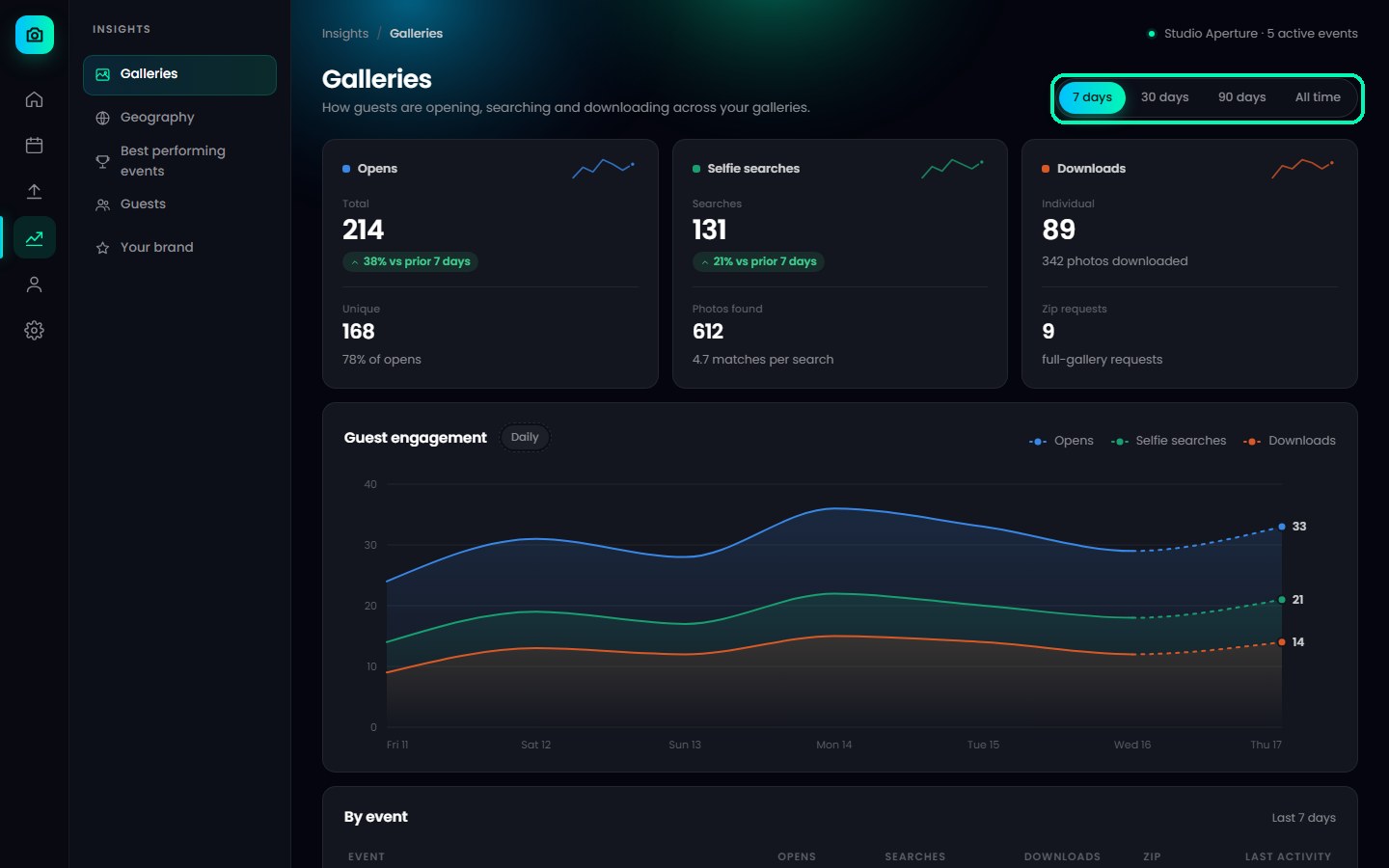
Choose a date range
At the top, choose 7 days, 30 days, 90 days or All time. 7 days is on every plan, 30 and 90 days are on every paid plan, and All time is on the Standard, Pro and Elite plans.
The Insights tiles on your dashboard
- Total Events – how many events you have.
- Total Reach – how many different people have visited at least one of your published events. Each person counts once, however many galleries they open.
- Total Downloads – how many photos guests have downloaded.
- Total Selfie Searches – how many times guests searched for themselves with a selfie.
Good to know
- Insights is available on a computer. In the TurtlePic mobile view, it shows Best viewed on desktop.
- To see the numbers for one event, use the By event table on the Galleries tab.
- The page shows when it was last updated, for example updated just now. Reload it to see the latest numbers.
Was this article helpful?
Your answer helps us improve this guide.
Thanks for letting us know.