
See how your WhatsApp broadcasts performed
See delivered, read and failed messages for every broadcast, and the credits used.
On this page4 sections
After you send a WhatsApp broadcast, TurtlePic shows how many messages were delivered and read, which ones failed and why, and how many credits were used.
Note
Broadcast results are included in every paid plan. If you later move to the Free plan, you can still see your past results, but you can’t send new broadcasts.
Open your broadcasts
Go to Insights and open WhatsApp broadcasts. You can also get there from any event: click Share event, then View past broadcasts →, or from Settings → Credits → View broadcast analytics →.
See all your broadcasts
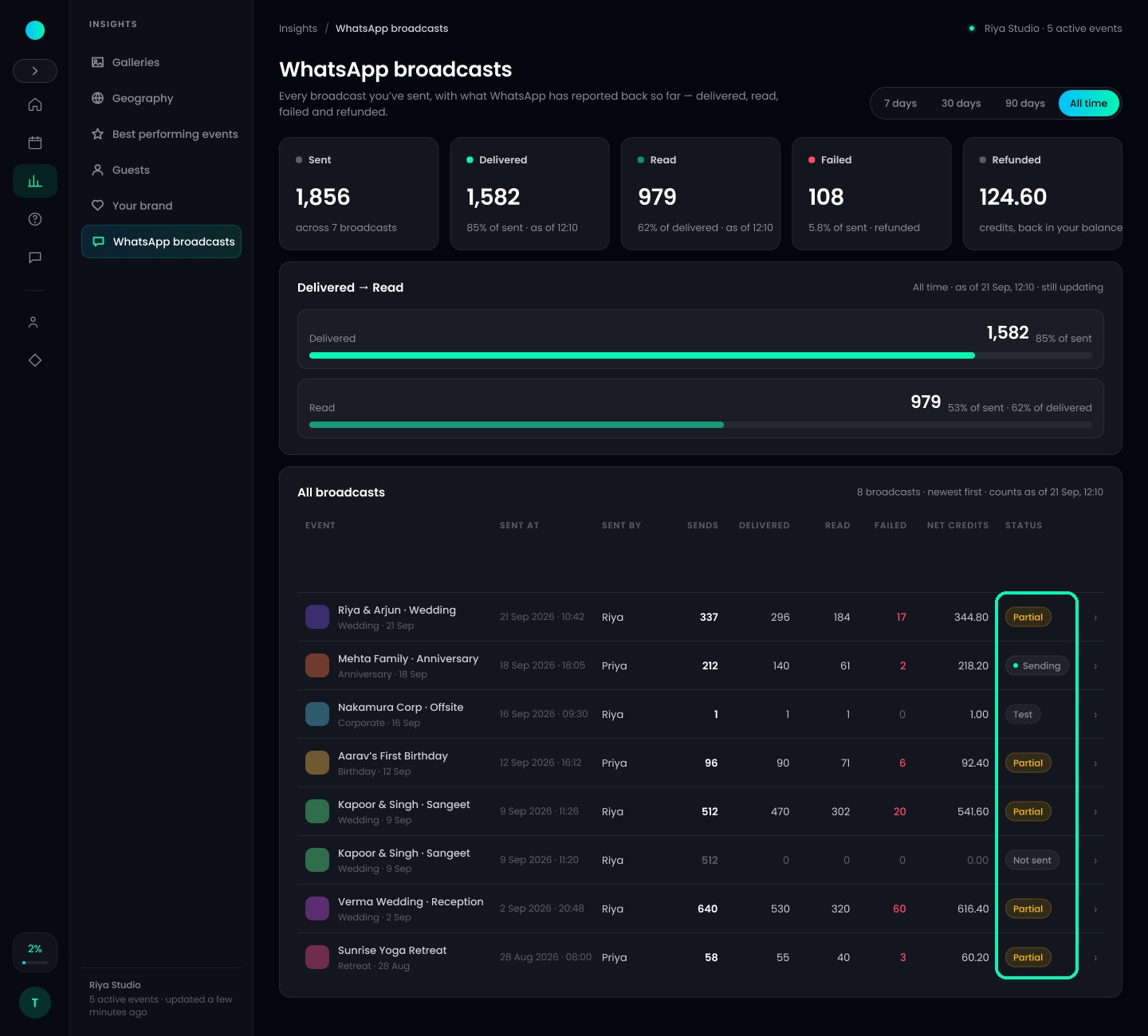
At the top, choose a date range. The tiles show how many messages were Sent, Delivered, Read and Failed, and the Refunded credits. The table below lists every broadcast, with its event, who sent it, the counts, the credits used and its Status:
- Sending – messages are still going out.
- Completed – every message went out.
- Partial – some messages failed. Their credits are refunded.
- Not sent – nothing went out and nothing was charged.
- Test – a test message you sent to yourself.
Open one broadcast
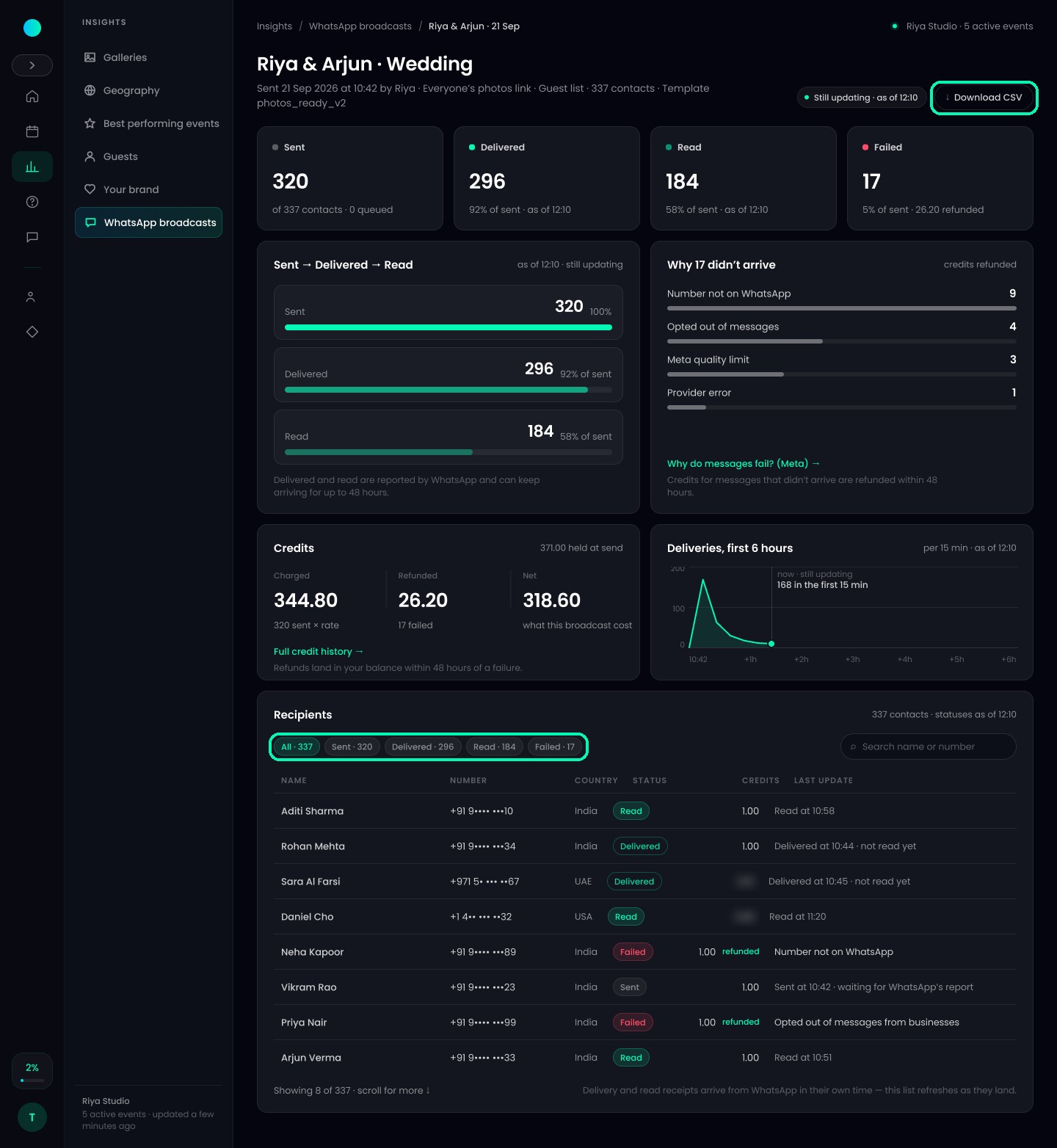
Click a broadcast to see its full report: how many messages were queued, sent, delivered, read and failed, Why messages failed, the credits Charged and Refunded, and a row for every recipient. Filter the rows by status, search by name or number, or click Download CSV.
Tip
While messages are still going out, the report refreshes by itself and shows Still updating. When everything has been processed, it shows Complete.
Was this article helpful?
Your answer helps us improve this guide.
Thanks for letting us know.