
See how guests use your galleries
Opens, selfie searches and downloads across your galleries, and which events are busiest.
On this page5 sections
The Galleries tab shows how guests are opening, searching and downloading across all your galleries, and which events are busiest.
Open Galleries
Click Insights in the sidebar. The page opens on Galleries.
Read the three tiles
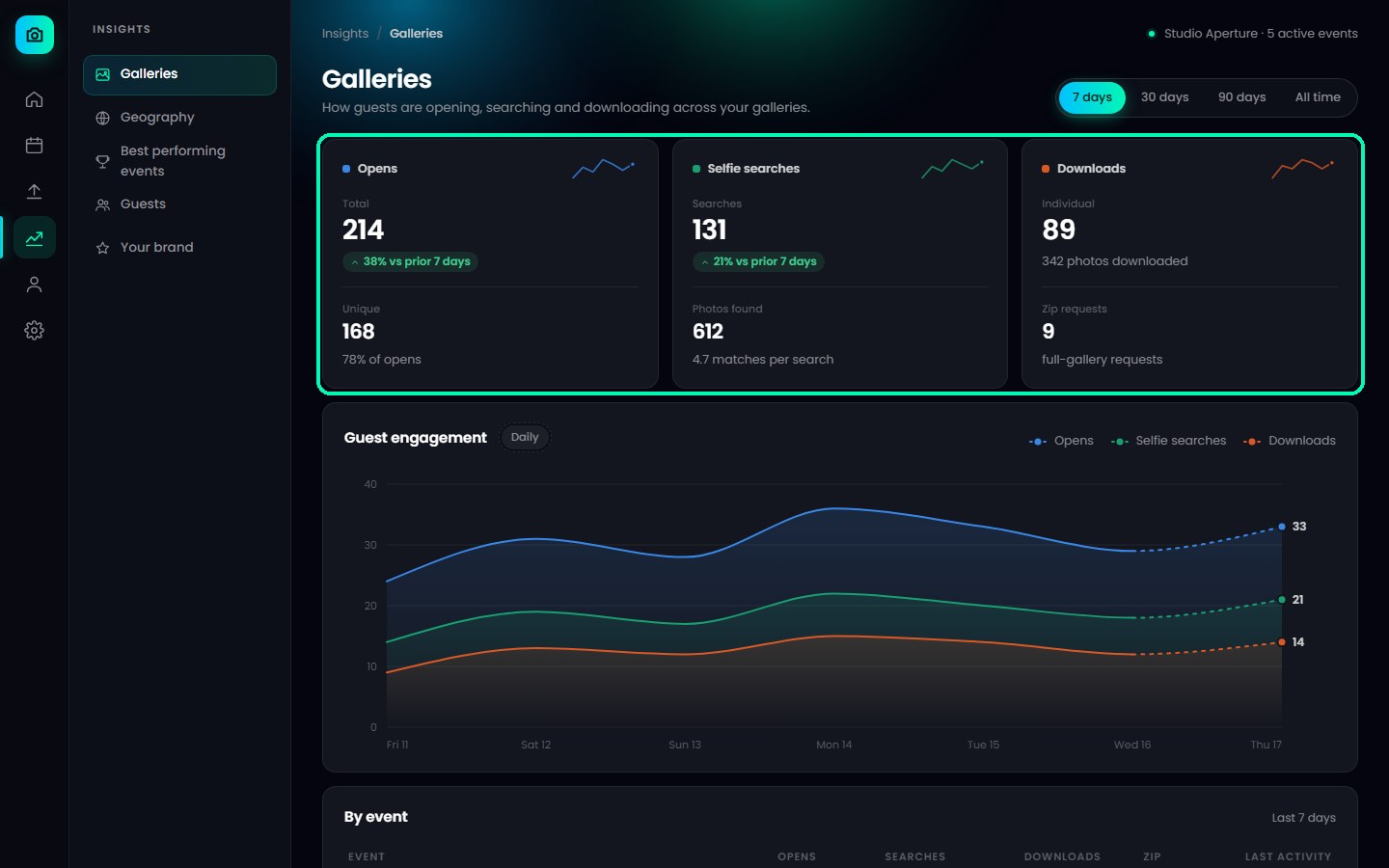
- Opens – how many times your galleries were opened, and how many of those were unique visitors.
- Selfie searches – how many selfie searches guests ran, how many photos they found, and the average number of matches per search.
- Downloads – how many photos guests downloaded one by one, and how many full-gallery ZIP requests they made.
Each tile also shows the change compared with the previous period.
Follow the trend
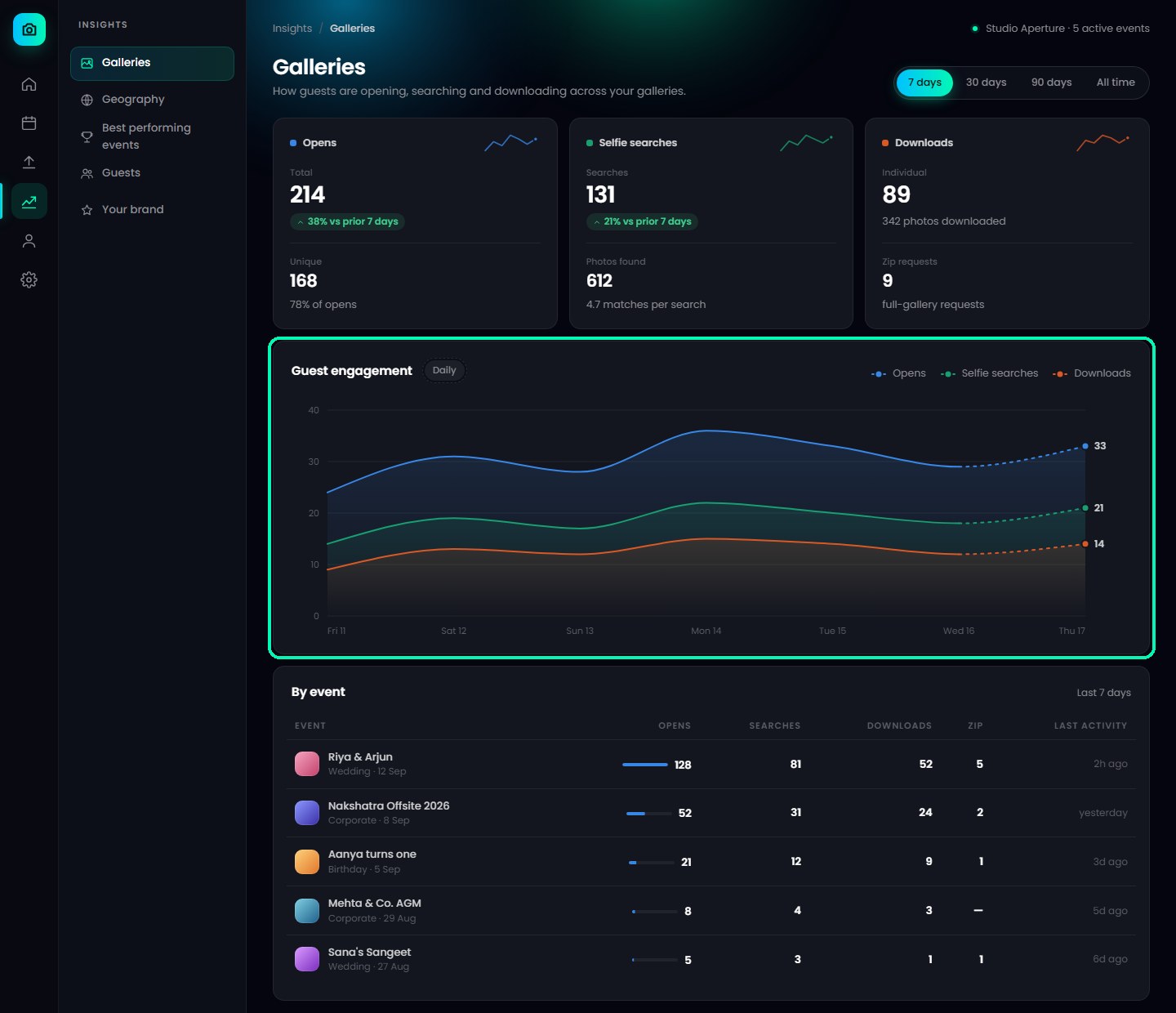
The Guest engagement chart shows activity over time. Switch between Daily, Weekly and Monthly, and hover over the chart to see the numbers for a single day or week.
Compare your events
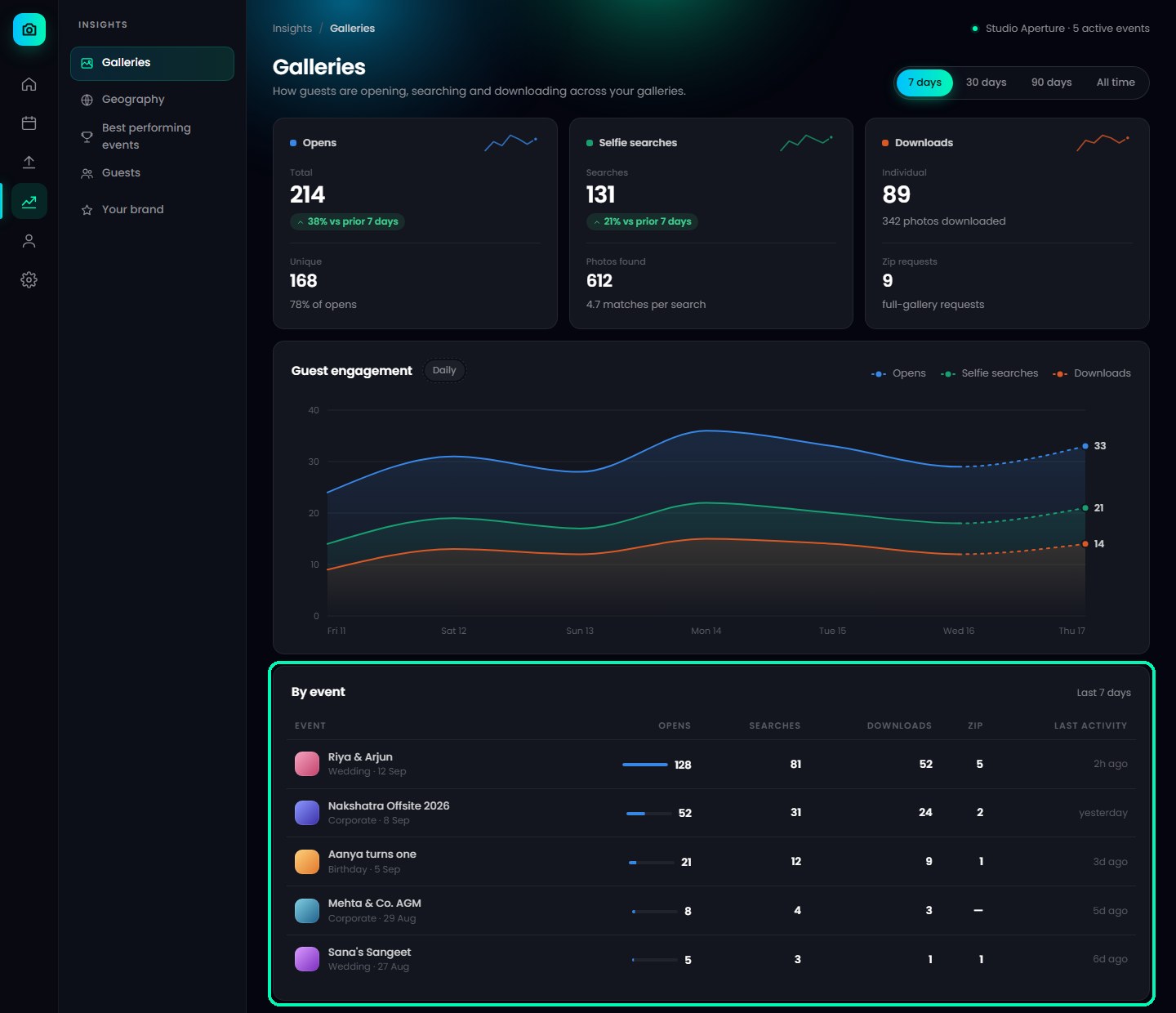
The By event table lists each event with its Opens, Searches, Downloads, Zip requests and Last activity, so you can see which galleries guests are using most.
Note
On the Free plan, Galleries shows the last 7 days. Every paid plan unlocks 30 and 90 days, and the Standard, Pro and Elite plans unlock All time.
Was this article helpful?
Your answer helps us improve this guide.
Thanks for letting us know.