
Save your favourite photos
Heart the photos you love so you can find them again, and so your photographer knows which ones you picked.
On this page3 sections
Hearts appear when the event asks for your email.
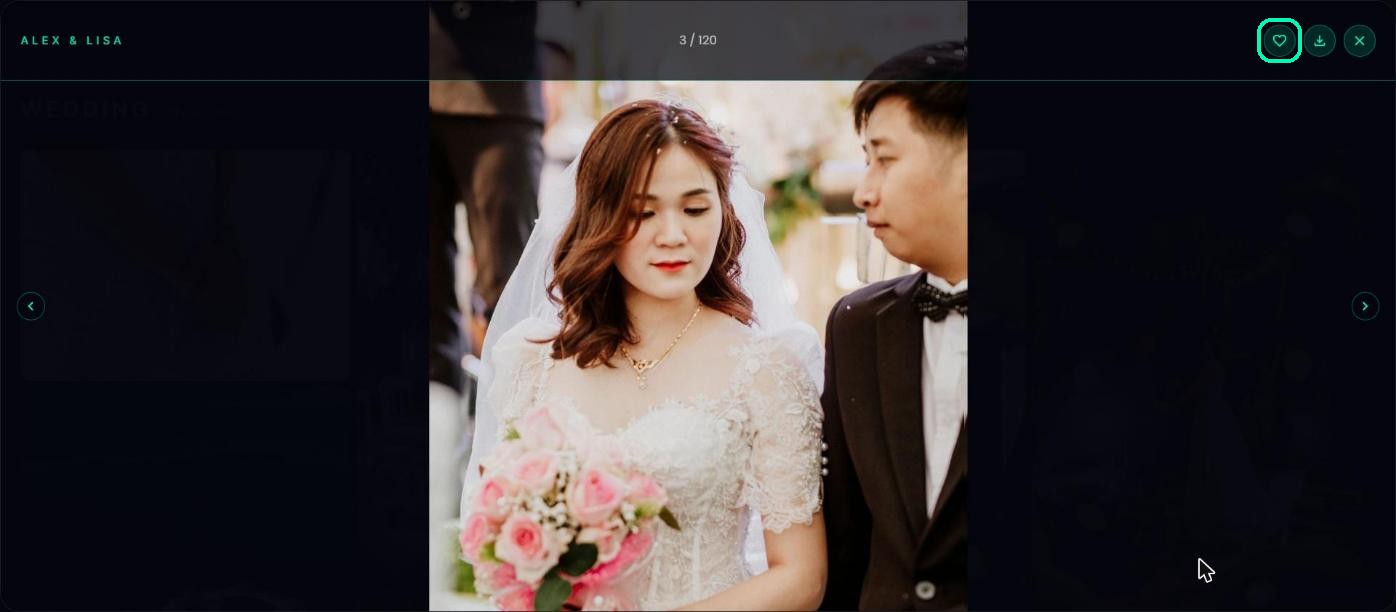
Heart a photo
Tap the heart on a photo to add it to your favourites. Tap it again to remove it. If you haven’t registered yet, you’ll be asked to first.
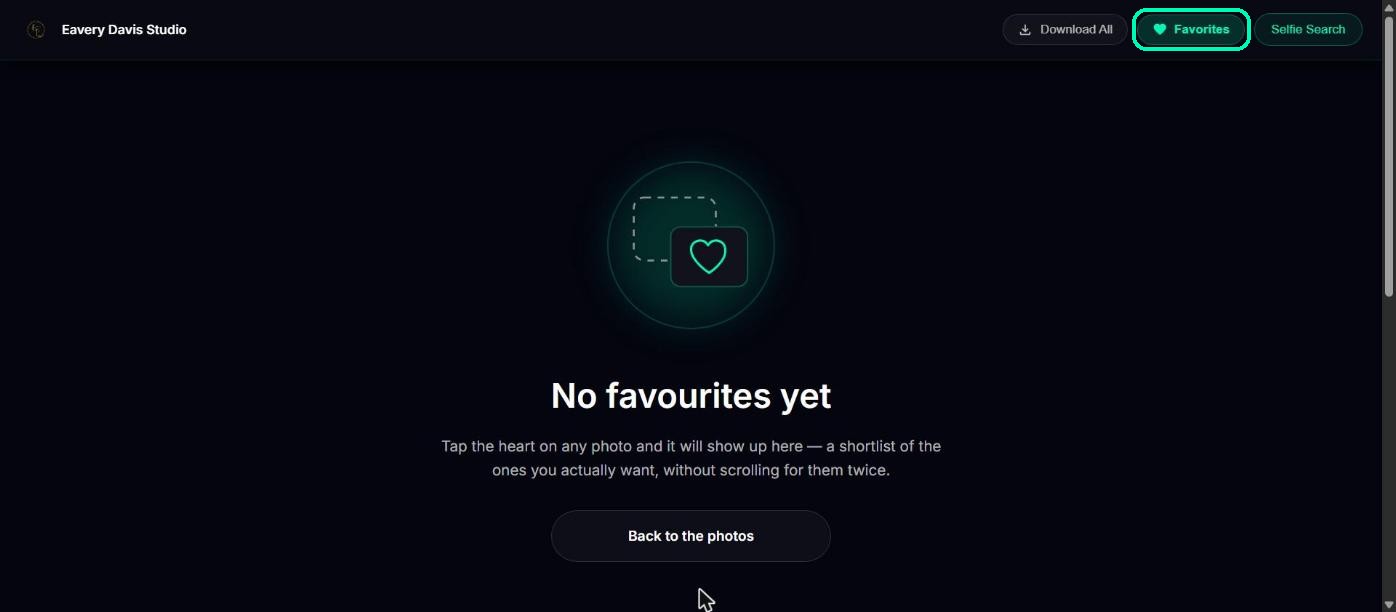
See your favourites
Tap Favorites at the top of the gallery to see only the photos you’ve hearted.
Note
Your photographer may set a limit on how many photos you can choose. When you reach it, you’ll see “You’ve used all … favorites”. Remove a heart to pick a different photo.
Tip
Photographers often use favourites to choose photos for albums and prints, so heart the ones you’d like to see in yours.
What’s next
Was this article helpful?
Your answer helps us improve this guide.
Thanks for letting us know.