
Didn’t find all your photos?
Simple fixes when your selfie finds too few photos, or the camera won’t open.
On this page7 sections
Try a clearer selfie
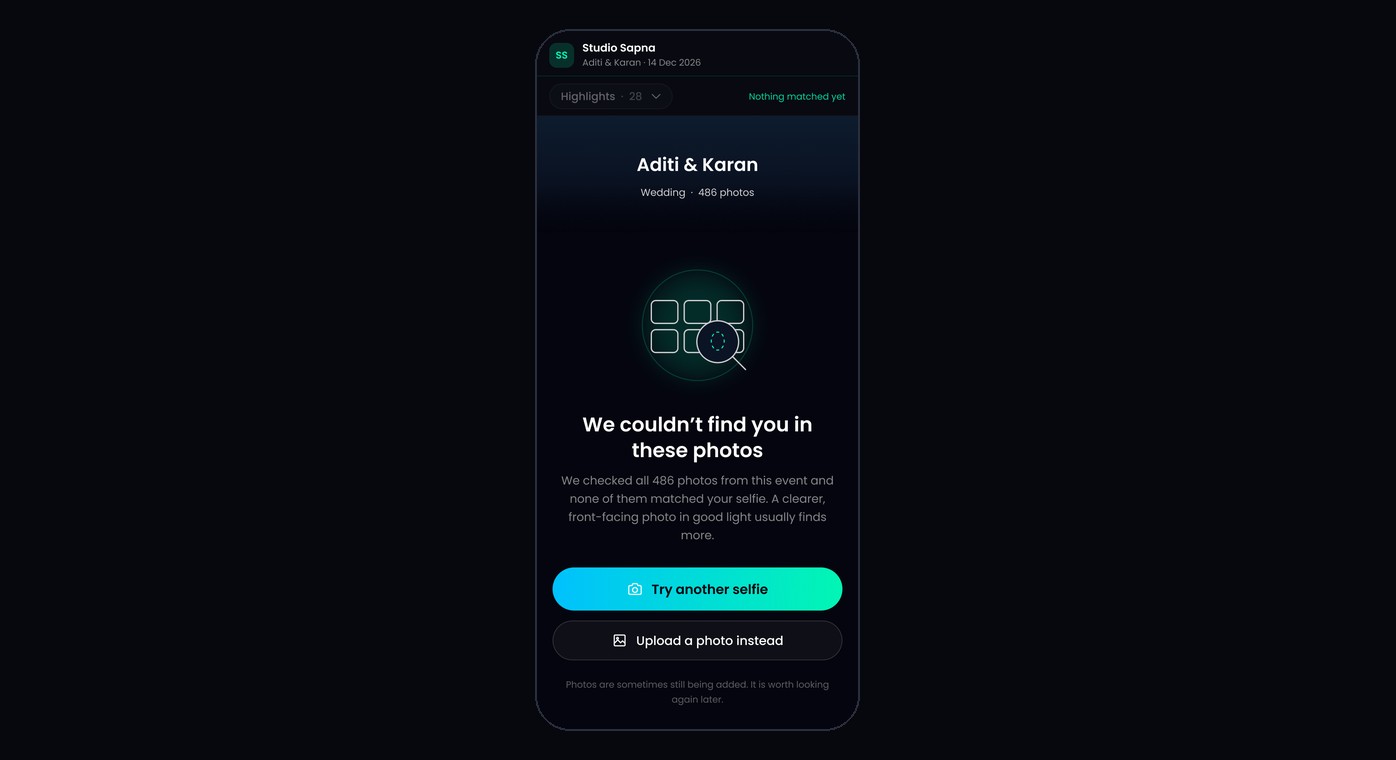
Face the camera in good light, and take off sunglasses or a mask. Then tap Try another selfie, or Retake selfie at the top of the gallery.
Make sure your face is visible
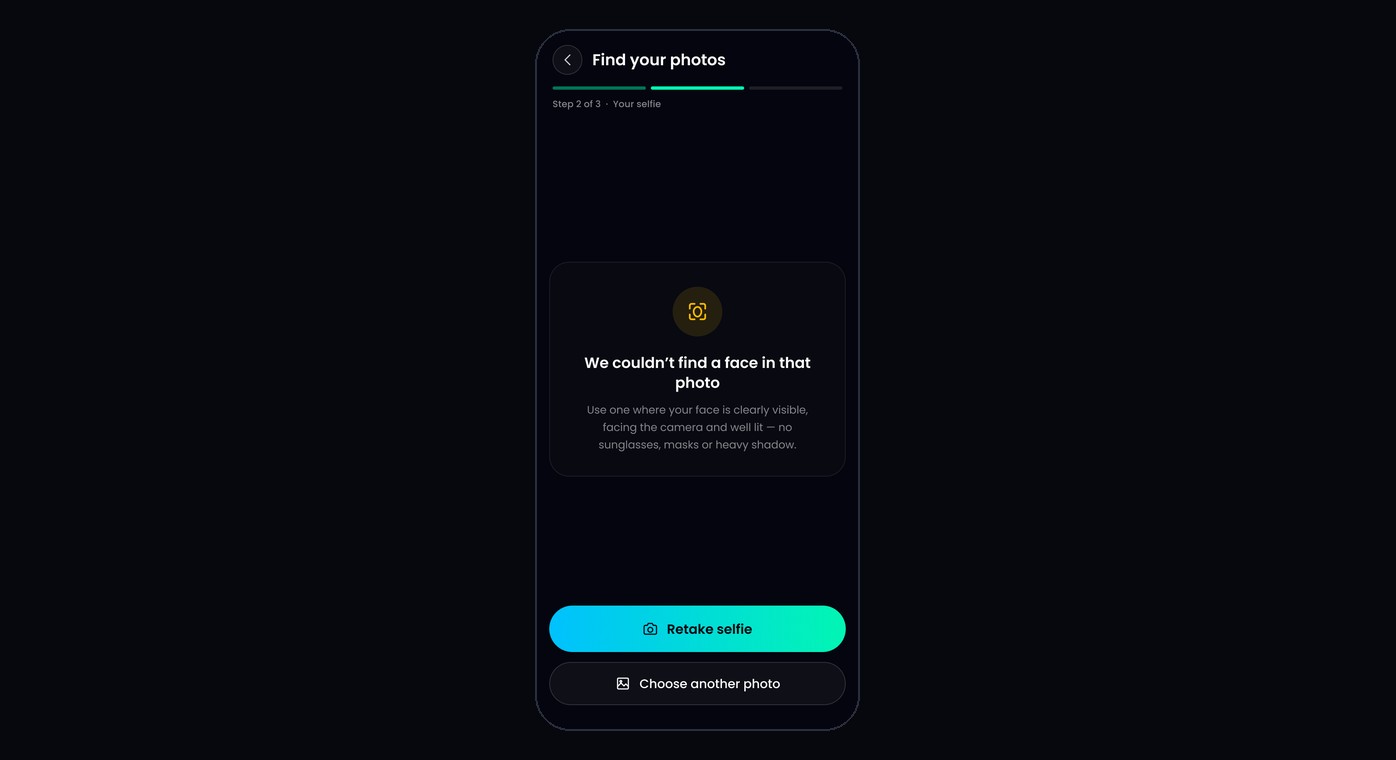
If you see “We couldn’t find a face in that photo”, use a photo where your face is clearly visible, facing the camera, with no heavy shadow.
Check back later
Your photographer may still be adding photos. If you see “Your photos are still being prepared”, or you expect more photos, open the link again later and search again.
If the camera won’t open
- When your browser asks to use the camera, tap Allow.
- If you see “Camera access is blocked”, tap the lock or ⓘ icon next to the web address and switch Camera to Allow.
- On iPhone, go to Settings → Safari → Camera and choose Allow.
- Opened the link inside Instagram or WhatsApp? These apps often block the camera. Open the link in Safari or Chrome instead.
If your photo won’t upload
If you see “We couldn’t open that photo”, try a different photo, such as a screenshot or a JPEG.
Still missing photos?
Tap Enquire at the end of the gallery to send the photographer a message.
Was this article helpful?
Your answer helps us improve this guide.
Thanks for letting us know.