Last updated: September 2026 · Written by the TurtlePic Team, who build AI photo delivery for weddings, conferences and college fests.
To send a WhatsApp broadcast to event guests without making a group, use a platform that messages each guest one to one from an official WhatsApp Business number. On TurtlePic, you open your event, choose Share event → Send by WhatsApp, pick your guests, check the credit cost and hit send. Every guest gets a private WhatsApp message with a button that opens their photos, and nobody has to save your number.
This guide walks through the full process step by step. It also covers what your guests actually receive, what it costs, and a few habits that get more guests to open their gallery. If you are new to TurtlePic, our guide on how to share event photos with guests explains the QR code and selfie search side of delivery.
Why a WhatsApp Group or Broadcast List Doesn’t Work for Event Photos
A WhatsApp group exposes every guest’s phone number to everyone else, and a regular broadcast list only reaches people who have saved your number. Both also send compressed photos, and neither tells a guest which of the 2,000 pictures they are in.
According to WhatsApp’s own help centre, a broadcast list holds up to 256 contacts, and a broadcast only reaches people who have added your number to their phone. At a 400-guest wedding, most guests have never saved the photographer’s number, so most of the broadcast silently goes nowhere. A group fixes the reach problem but creates a privacy one: every guest can see every other guest’s number, and the chat quickly fills with “send me the one with Aunty” requests.
Here is how the three options compare for event photo delivery:
| WhatsApp group | WhatsApp broadcast list | TurtlePic WhatsApp broadcast | |
|---|---|---|---|
| Guests must save your number | No | Yes | No |
| Guest numbers visible to others | Yes | No | No |
| Recipients per send | Up to 1,024 members | Up to 256 | Up to 800 per broadcast |
| Photo quality | Compressed by default | Compressed by default | Link to the full-resolution gallery |
| Each guest sees only their own photos | No | No | Yes, with selfie search |
| Sent from | Your personal number | Your personal number | TurtlePic’s WhatsApp Business number |
| Delivery and read tracking | Manual, per message | Manual, per message | Dashboard for every broadcast |
What You Need Before You Send a WhatsApp Broadcast to Event Guests
You need three things: a published event on a paid TurtlePic plan, enough WhatsApp credits in your account, and an Owner, Admin or Manager role on the team.
- A paid plan. WhatsApp broadcasts are available on every paid plan. On the Free plan the option is visible but locked. See TurtlePic pricing for the plan list.
- WhatsApp credits. You pay per message with prepaid credits. One message to an Indian number costs 1 credit. You buy credits from Settings → Credits, starting at 500, and anyone on your team can top up.
- The right role. Owners, Admins and Managers can send broadcasts. Contributors see the option locked, so a second shooter can’t message your client’s guests by mistake.
- Guest phone numbers. Either guests registered for the event with their WhatsApp number, or you have a spreadsheet of numbers from your client.
How to Send a WhatsApp Broadcast to Event Guests on TurtlePic (Step by Step)
Open your event, click Share event, choose Send by WhatsApp, and work through four screens: Recipients, Link, Message, and Review & send. The steps below cover every screen and option. A summary panel on the right shows the credit cost the whole time, and nothing is charged until you confirm the final send.
Before you start: top up your WhatsApp credits
Go to Settings → Credits and click Buy credits. Enter how many you want, or pick 500, 1,000, 1,500, 2,500 or 5,000, and pay online. Your balance updates as soon as the payment goes through. The minimum purchase is 500 credits, you can hold up to 5,000 at a time, and bigger packs are discounted automatically. If you forget this step, TurtlePic stops you at the end and shows exactly how many credits you’re short (see step 9).
Step 1: Open Send by WhatsApp from your event
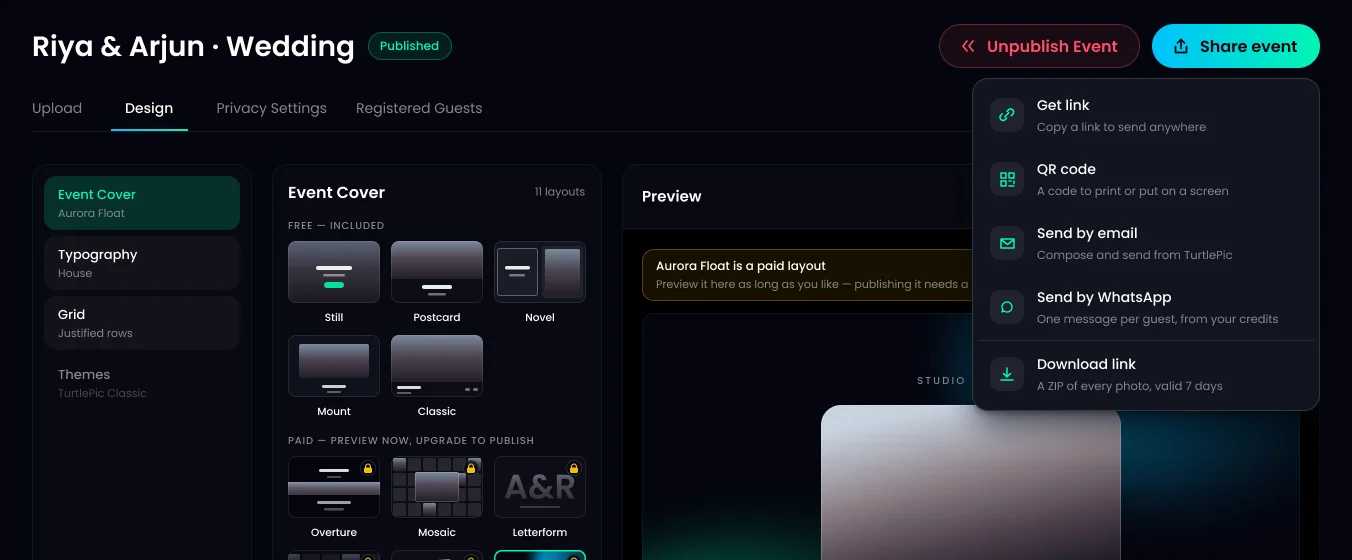
Open the published event in your TurtlePic dashboard, click Share event at the top right, and choose Send by WhatsApp. It sits in the same menu as Get link, QR code and Send by email.
If the option shows a lock with “Owner, Admin or Manager only”, your team role is Contributor and you’ll need someone with a higher role to send. The same menu has a View past broadcasts link that takes you to the results of anything you’ve already sent.
Step 2: Pick guests from the event’s guest list
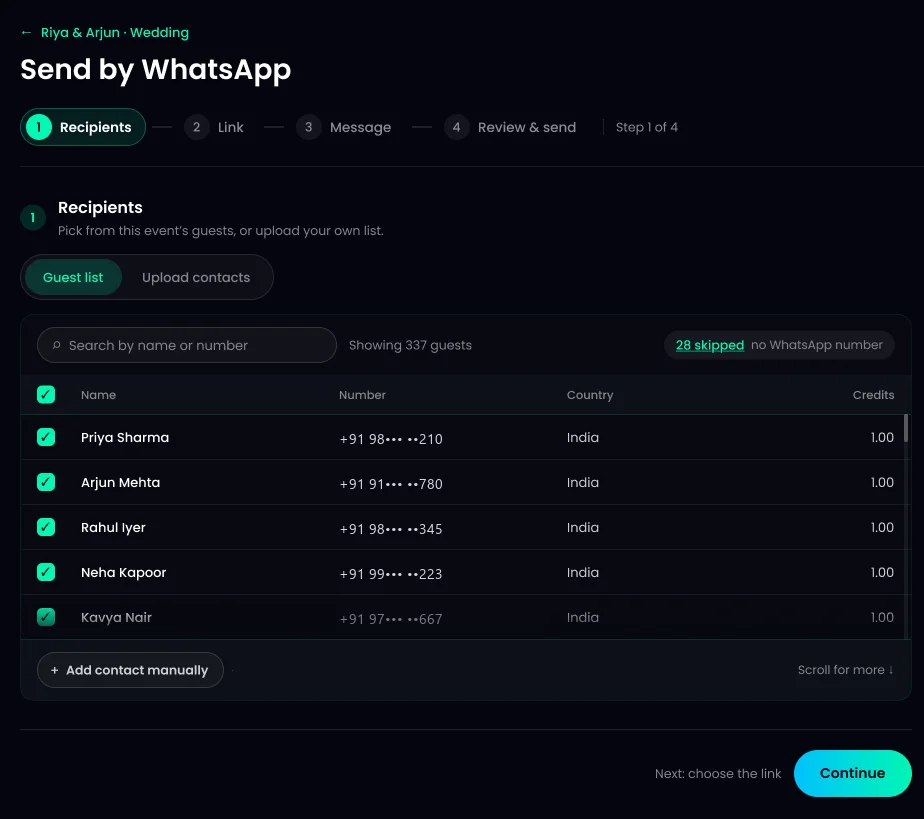
The Guest list tab opens with every registered guest who gave a WhatsApp number already selected. Untick anyone you want to leave out, or use the search box to find a guest by name or number.
Each row shows the guest’s name, number, country and the credits their message will cost. Guests who registered without a usable number (email only, a landline or an invalid number) are listed under a skipped chip. Click it to see who was left out and why. There’s nothing to fix there, but it tells you who to reach another way. You can send to up to 800 contacts in one broadcast. If you select more, TurtlePic asks you to untick the extra contacts before you can continue.
Step 3: Or upload your own contact list (CSV or Excel)
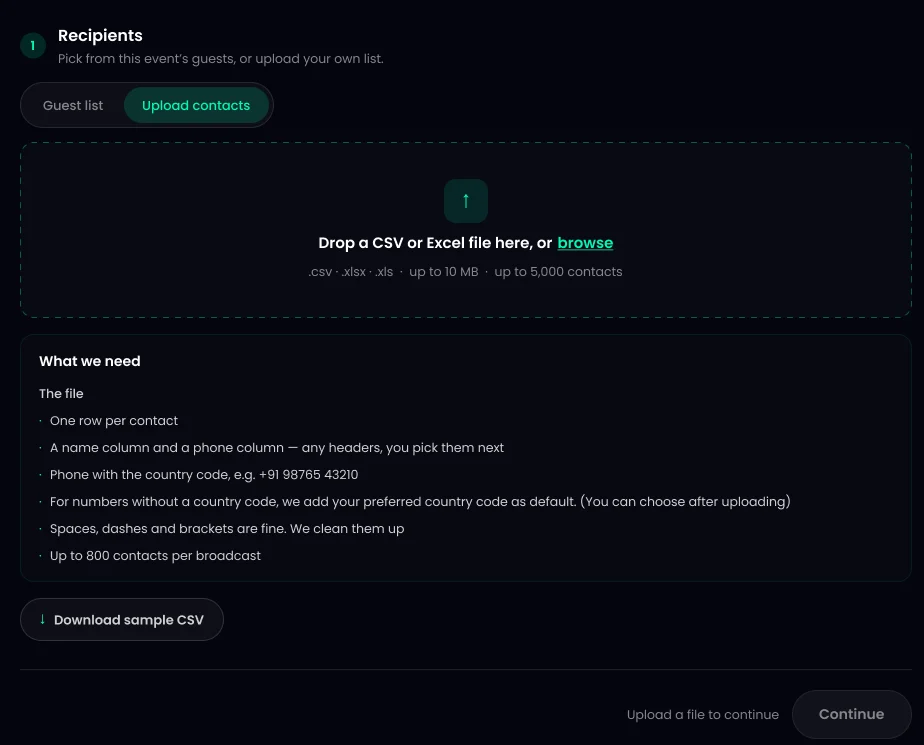
If guests didn’t register through TurtlePic, switch to the Upload contacts tab and drop in a CSV or Excel file from your client. TurtlePic accepts .csv, .xlsx and .xls files up to 10 MB and up to 5,000 rows.
The file needs one row per contact, with a name column and a phone column. The column headers can be anything, because you match them in the next step. Numbers should include the country code (for example +91 98765 43210). Spaces, dashes and brackets are fine. If you’re not sure about the format, click Download sample CSV and copy your list into it. You can upload more than one file, for example one from the bride’s family and one from the groom’s, and duplicate numbers across files are merged.
Step 4: Check your contacts and match the columns
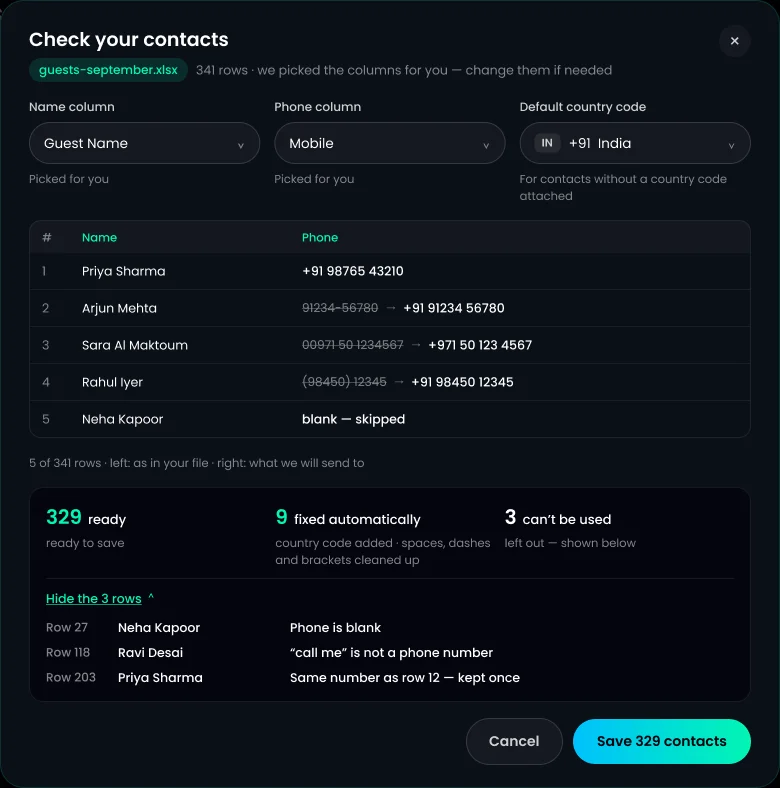
After the upload, a Check your contacts window opens. TurtlePic guesses which column holds names and which holds phone numbers. Confirm or change them, then choose a default country code for numbers that don’t have one.
The window shows your file on the left and the number TurtlePic will actually send to on the right, so you can see each fix: a missing +91 added, a “00971” prefix turned into +971, brackets removed. At the bottom it counts how many contacts are ready, how many were fixed automatically, and how many can’t be used, with the row number and reason for each (a blank phone, text like “call me”, or a duplicate). Click Save to add the usable contacts to your recipients.
Step 5: Add anyone who’s missing manually
Click + Add contact manually below the list, type a name and a WhatsApp number with its country code, and click Add. The contact joins the list with an “Added manually” tag.
This is useful for the couple’s parents, the event host, or a VIP who never registered. If you type a number without a country code, your preferred country code is added. A number that’s already on the list won’t be added twice.

Step 6: Choose which link guests get
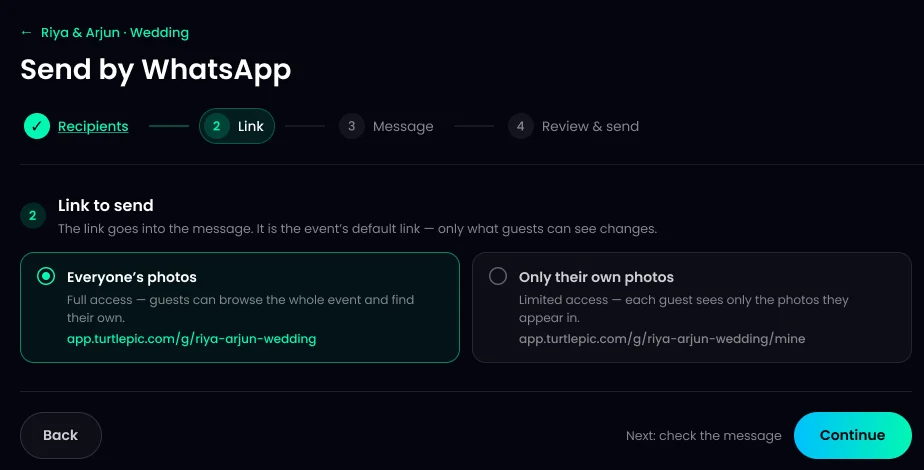
Click Continue to reach the Link screen, then choose Everyone’s photos (full access to the whole gallery) or Only their own photos (each guest finds only the photos they appear in with a quick selfie).
For weddings and private parties, “Everyone’s photos” usually makes sense, because families want to browse the whole day. For corporate events, school events and conferences, “Only their own photos” is the safer choice: even if a message is forwarded, each person only ever sees their own face. Both cards show the exact link that will go into the message.
Step 7: Preview the message
The Message screen shows the WhatsApp message filled in for one guest. You don’t write or edit anything. The wording is a template approved by Meta, and TurtlePic fills in four things for every guest: their name, the event name, your event cover photo and the gallery link.
Businesses that message people first on WhatsApp must use pre-approved templates under WhatsApp’s Business Messaging Policy. That rule keeps the sending number in good standing and your messages out of spam. Use this screen to check that the event name reads well and the cover photo looks right, because both appear in every guest’s chat. You can see the full message at the end of this guide.
Step 8: Review your broadcast and send yourself a test
The Review & send screen lists your recipients, link and message, each with an Edit link that takes you back to that screen. Before sending to everyone, click Send a test.
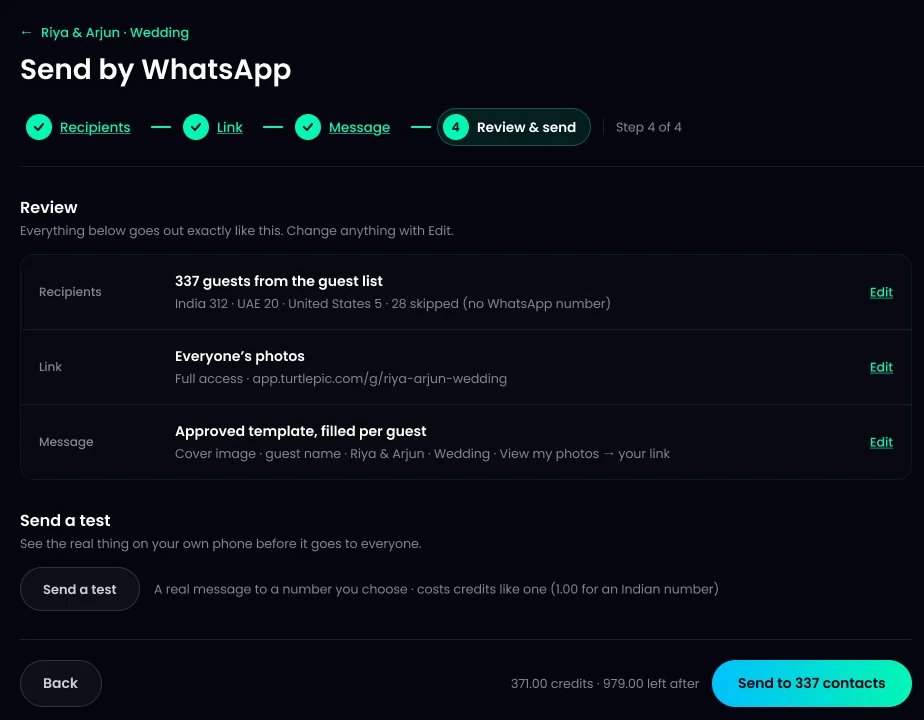
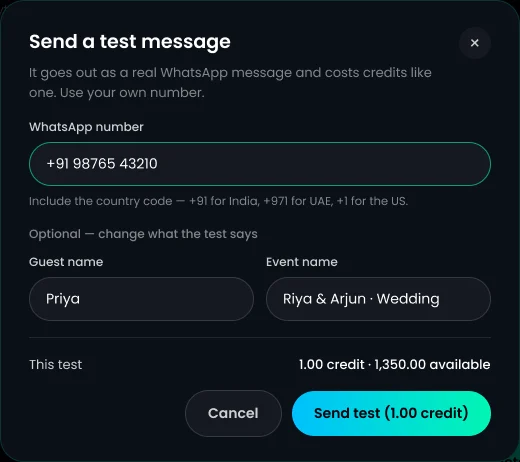
In the test window, enter your own WhatsApp number with the country code. You can also change the guest name used in the test. Click Send test, and you’ll get the exact message your guests will receive. A test costs the same as one message (1 credit for an Indian number), and it’s the only way to see the real thing on a phone before it goes out.
Step 9: Check you have enough credits
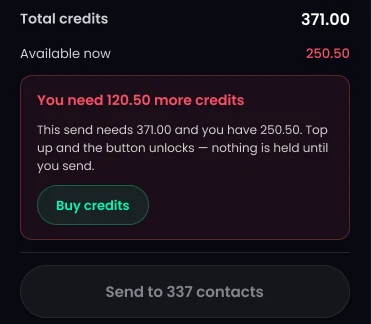
The summary panel shows how many guests are in each country, the credits per message for that country, the total credits needed, and your balance after sending. If your balance is too low, the send button stays locked and a message tells you exactly how many more credits you need.
Click Buy credits, top up, and the send button unlocks. Nothing is held from your balance until you actually send.
Step 10: Send the broadcast and confirm
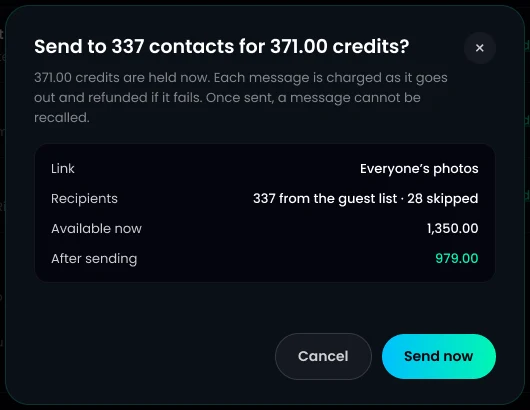
Click Send to [number] contacts. A confirmation window shows the link, the number of recipients, your balance now and your balance after sending. Click Send now to start the broadcast.
At this point the credits are held from your balance. Each message is charged as it goes out and refunded if WhatsApp rejects it. A sent message can’t be recalled, which is why the test in step 8 is worth one credit.
Step 11: Get your receipt and track delivery
Right after sending, TurtlePic shows a receipt with the number of contacts and the credits used. Most guests get their message within a few minutes, though delivery can take up to 48 hours.
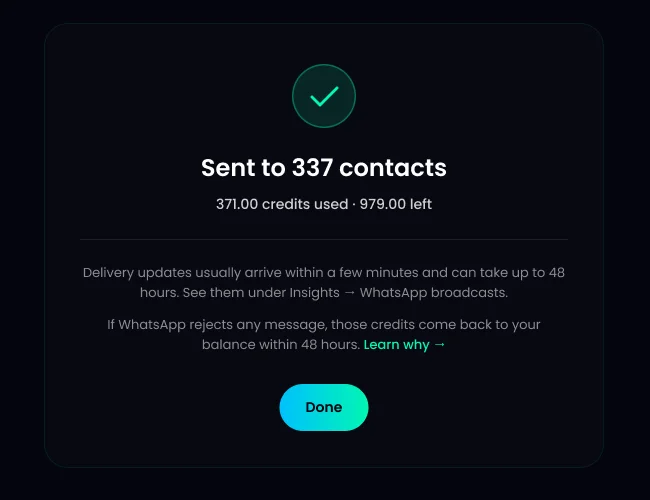
If WhatsApp rejects any message, for example because the number isn’t on WhatsApp, those credits come back to your balance within 48 hours, with nothing to claim. To see who received, read or missed the message, open Insights → WhatsApp broadcasts in your dashboard. You’ll see sent, delivered, read and failed counts for every broadcast, and a list of every guest with their status. Our WhatsApp broadcast analytics guide explains each status. For guests the message didn’t reach, a quick follow-up by email closes the gap.
How Much Does a WhatsApp Broadcast Cost?
A WhatsApp broadcast to event guests on TurtlePic costs one credit per message to an Indian number, so a 300-guest wedding in India needs 300 credits. Numbers in other countries cost more credits per message, and messages WhatsApp rejects are refunded to your balance automatically.
| Guest’s country | Credits per message |
|---|---|
| India | 1.00 |
| United States | 2.13 |
| United Arab Emirates | 4.25 |
| United Kingdom | 5.39 |
Credits are bought in packs of 500 or more, and bigger packs are cheaper: 5% off from 1,001 credits and 10% off from 2,001 credits. Unused credits expire 12 months after your last credit activity, or when your plan ends. We cover buying, refunds and expiry in detail in our guide to how WhatsApp message credits work.
Tips to Get More Guests Opening Their Photos
When you send a WhatsApp broadcast to event guests, the biggest factors are clean phone numbers, the right link type, and good timing. These habits come from watching how photographers run broadcasts on TurtlePic:
- Collect numbers with consent at registration. Guests who register through the event QR code give you a clean number and know to expect their photos. WhatsApp requires that people agree to hear from a business before it messages them, so an explicit sign-up is the safest source. See how to notify pre-registered guests for the registration setup.
- Always include the country code. NRI guests at an Indian wedding are the most common cause of failed messages. A number saved as “98765 43210” gets India’s code by default, which is wrong for a guest in Dubai.
- Set a good cover photo first. The cover image is the header of every message, and it’s the first thing guests see in their chat list.
- Send while the event is fresh. A broadcast the evening after a wedding or on the last day of a conference gets far more attention than one sent a week later.
- Use “Only their own photos” for large or public events. Guests get straight to their pictures instead of scrolling, and nobody sees photos of strangers. Read more on sharing event photos securely.
- Split big lists. For more than 800 guests, send two broadcasts, for example bride’s side and groom’s side, or one per conference day.
Weddings are where this matters most. See how TurtlePic handles the whole flow on our wedding photo sharing page.
Preview: What Attendees See on WhatsApp
When you send a WhatsApp broadcast to event guests through TurtlePic, each attendee gets a private one-to-one message from TurtlePic’s WhatsApp Business number. It shows your event cover photo, their name, the event name and a View my photos button. They don’t need to have saved any number, and no one can see who else received it.
Here is exactly how it looks on a guest’s phone, with the guest name and event name filled in:
What happens when the guest taps “View my photos”:
- If you chose “Everyone’s photos”: the full event gallery opens in the phone’s browser. Guests can browse every album, and use the selfie search to jump to their own photos.
- If you chose “Only their own photos”: the guest takes a quick selfie, and TurtlePic’s face recognition shows only the photos they appear in.
- Either way: there’s no app to install, and photos download at full resolution, not the compressed copies WhatsApp creates when you send images in a chat.
If a guest’s name is missing from your list, the message opens with “Hi there” instead. The best way to see the message yourself is the Send a test button in step 8.
Frequently Asked Questions
Do guests need to save my number to receive the WhatsApp broadcast?
No. TurtlePic sends each message one to one from its official WhatsApp Business number using a Meta-approved template, so it reaches guests whether or not they have saved any number. This is different from a normal WhatsApp broadcast list, which only reaches contacts who have saved your number.
How many guests can I send a WhatsApp broadcast to at once?
You can send one TurtlePic WhatsApp broadcast to up to 800 contacts. For a larger event, split the guest list and send more than one broadcast. An uploaded contact file can hold up to 5,000 rows, and you choose who to include from it.
Can I send event photos on WhatsApp without creating a group?
Yes. With TurtlePic’s Send by WhatsApp, every guest gets a private message with a link to their photos, so there’s no group, no shared chat and no exposed phone numbers. The link opens a full-resolution gallery, so photos are not compressed the way they are when sent in a WhatsApp chat.
Can I edit the WhatsApp message before sending?
No, the wording is a fixed template approved by Meta, which WhatsApp requires for messages a business sends first. TurtlePic personalises it automatically with each guest’s name, the event name, your event cover photo and the gallery link.
How much does it cost to send a WhatsApp broadcast on TurtlePic?
Each message costs credits based on the guest’s country: 1 credit for an Indian number, and more for international numbers. Credits are bought from 500 at a time, with 5% off from 1,001 credits and 10% off from 2,001. Credits for messages WhatsApp rejects are refunded automatically within 48 hours.
Can I schedule a WhatsApp broadcast for later?
Not at the moment. A TurtlePic WhatsApp broadcast goes out as soon as you click Send now. Most guests receive it within a few minutes, and delivery can take up to 48 hours.
Who on my team can send a WhatsApp broadcast?
Owners, Admins and Managers can send WhatsApp broadcasts. Contributors can’t send, but anyone on the team can buy credits. The feature is available on every paid TurtlePic plan.
The short version: WhatsApp groups and broadcast lists weren’t built for delivering event photos to hundreds of people who don’t have your number. A one-to-one WhatsApp broadcast to event guests reaches every guest privately, links to full-resolution photos, and costs one credit per Indian guest, refunded if it fails. See TurtlePic plans and WhatsApp credits and send your next gallery straight to every guest’s WhatsApp.