
Share your event link with guests
Copy a link that opens your gallery, and choose whether guests see every photo or only their own.
On this page8 sections
The quickest way to get photos to guests is a link. Share it in a WhatsApp group, a text message or an email, and guests open the gallery in their browser, with no app to install.
Before you start
- An event with photos uploaded.
- Decide whether guests should see every photo, or only the photos they appear in.
Open Get link
Open your event, click Share event at the top right, and choose Get link.
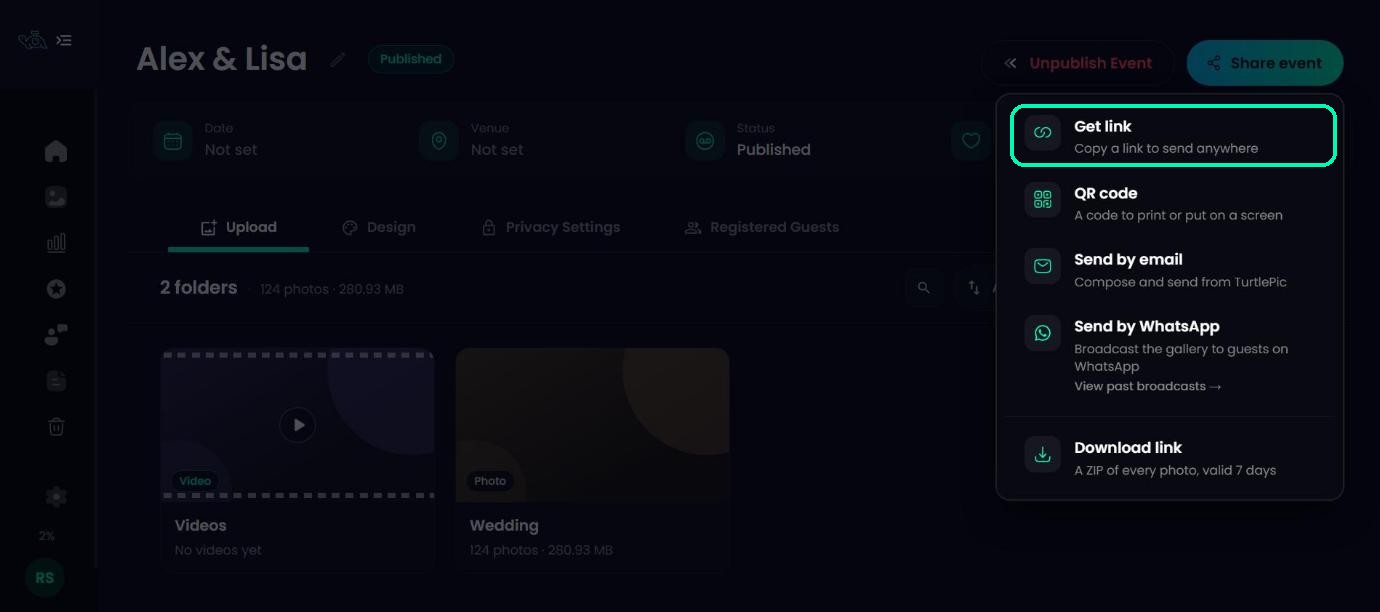
Choose what guests can see
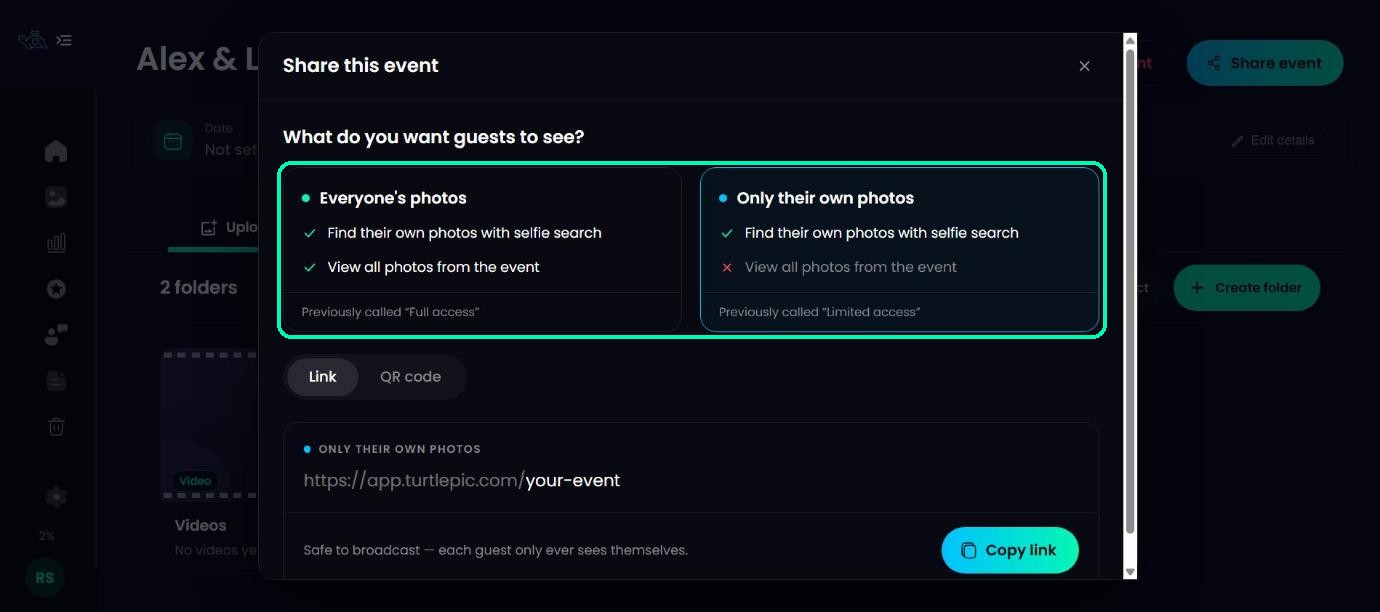
Under What do you want guests to see?, pick one:
- Everyone’s photos – guests can find their own photos with selfie search, and browse every photo from the event.
- Only their own photos – guests only see the photos they appear in, after a selfie. It’s safe to share widely, because each guest only ever sees themselves.
TurtlePic remembers your choice for this event, so it’s already selected next time.
Note
These were previously called Full access and Limited access. They work the same way; only the names changed.
Copy the link
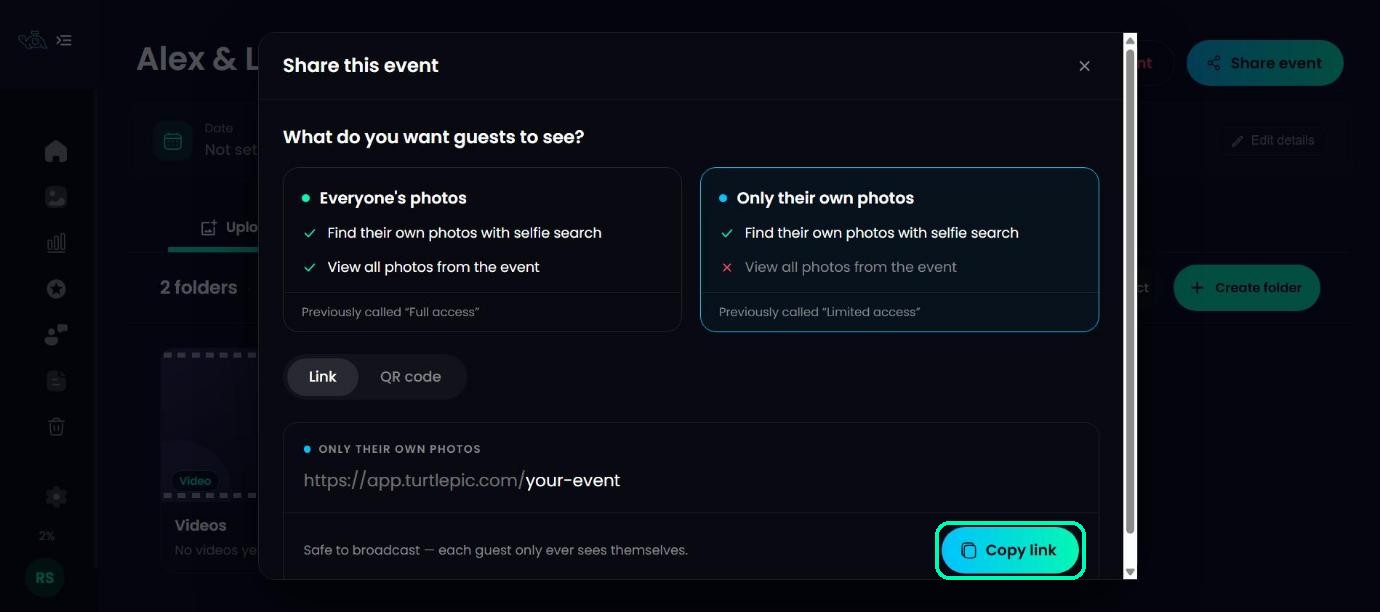
With the Link tab selected, click Copy link. The button changes to Copied, and you can paste the link anywhere.
Tip
The two links look different. The Everyone’s photos link has an extra code at the end, so check you’ve copied the one you meant before sending it to a big group.
Publish before guests open it
If the event is still a draft, you’ll see NOT PUBLISHED YET. The link already works, but guests will see an empty gallery until you publish. Click Publish event when you’re ready.
Guests can share it too
Inside the gallery, guests can copy the link or send it on WhatsApp to friends who were at the event, so the gallery spreads without extra work from you.
Sharing from your phone
In the TurtlePic mobile view, Share event → Get link gives you Copy, WhatsApp and More, which opens your phone’s own share options.
Was this article helpful?
Your answer helps us improve this guide.
Thanks for letting us know.