
Email your gallery to guests
Send your gallery to guests’ inboxes with your own message, and include everyone who registered.
On this page7 sections
Send your gallery straight to guests’ inboxes from TurtlePic. Each guest gets an email with a button that opens the gallery, where they can find their photos with a selfie.
Note
TurtlePic doesn’t email guests automatically when you publish. Guests only get an email when you send one from here.
Before you start
- A published event. Email sending unlocks once you publish.
- Your guests’ email addresses, typed in or saved in a CSV or Excel file.
Open Send by email
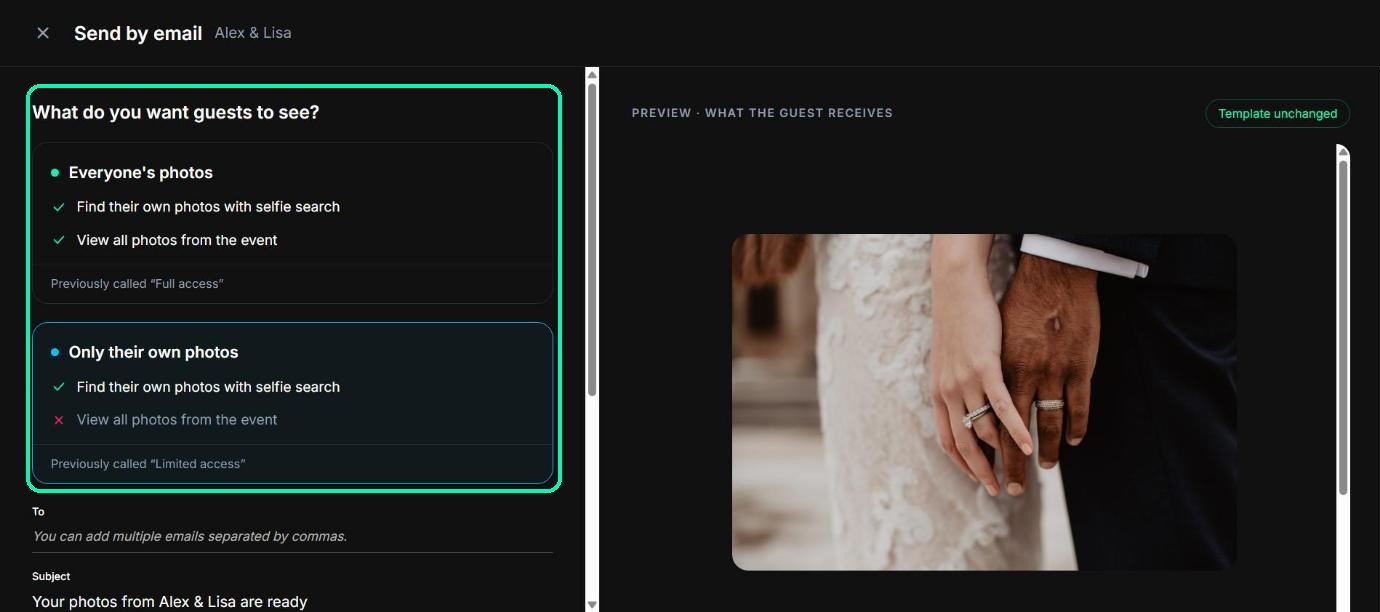
Open your event, click Share event and choose Send by email. You write the email on the left, and see a live preview on the right. At the top, choose what guests can see, Everyone’s photos or Only their own photos, the same choice as in Get link.
Add your guests
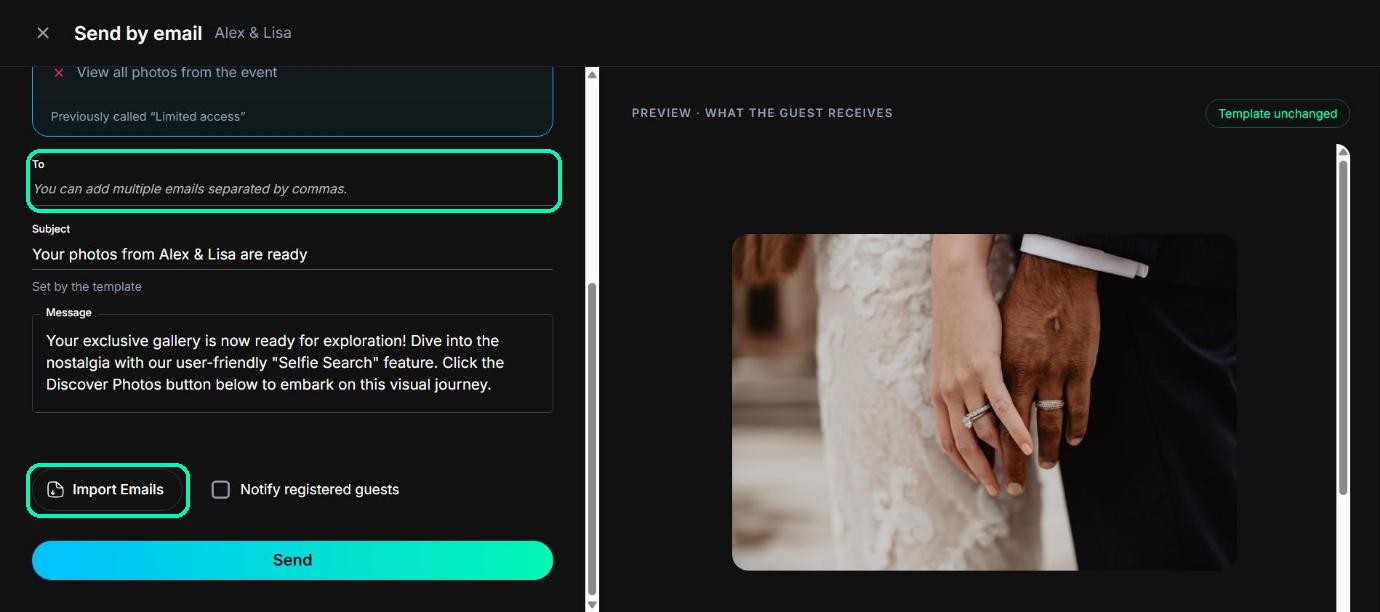
Type email addresses in the To box, separated by commas. Or click Import emails and choose a .csv, .xls or .xlsx file, and the addresses are added for you.
Tip
Check the list before you send. There’s no undo once the email has gone.
Include registered guests
Tick Notify registered guests to also email everyone who registered for this event’s gallery.
Write your message
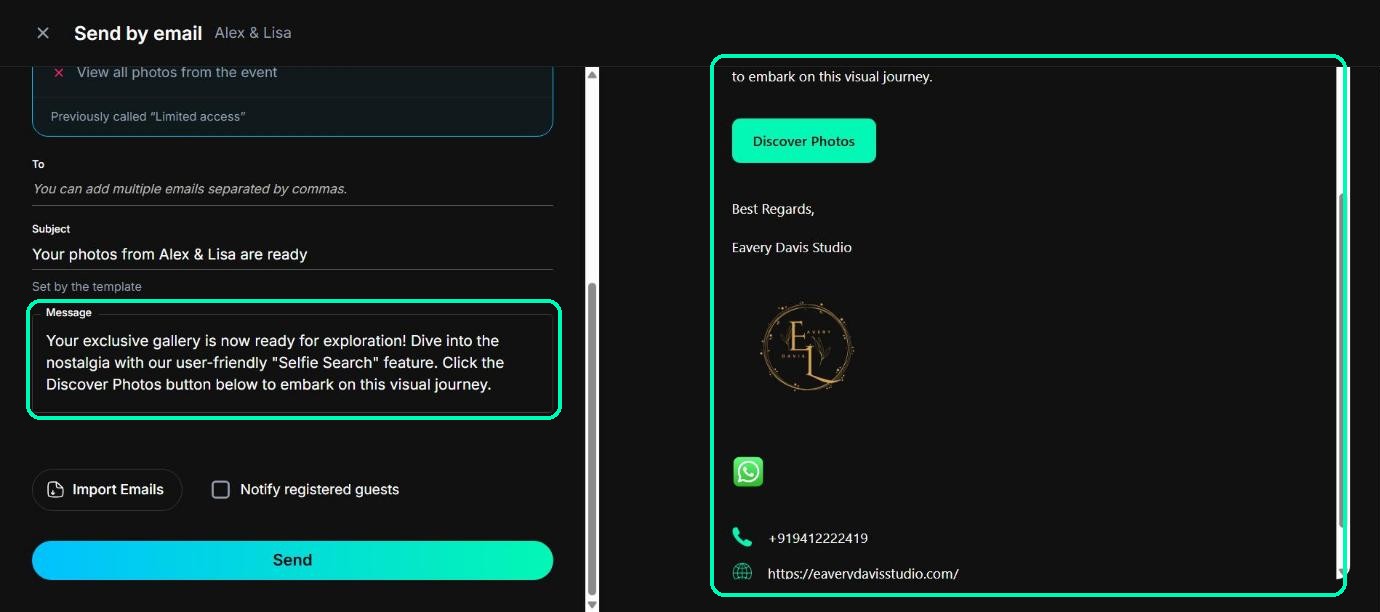
The subject is set for you: Your photos from {event name} are ready. Write your own message in the Message box, for example a thank-you note. It saves by itself, and the preview updates to show exactly what guests will receive.
Send it
Click Send to {number} guests. You’ll see a confirmation as soon as the email is on its way.
Note
If the event is still a draft, you’ll see This event is still a draft. Publish it before emailing guests. and the send button stays off.
Was this article helpful?
Your answer helps us improve this guide.
Thanks for letting us know.