
See and export your registered guests
See everyone who registered for your gallery, download the list as a spreadsheet, and choose what details guests fill in.
On this page9 sections
When guests open your gallery, they register before finding their photos. TurtlePic keeps a list of everyone who registered for each event, so you can see who came, export their details and follow up with them.
Before you start
- An event that guests have already opened and registered for.
Choose what guests fill in
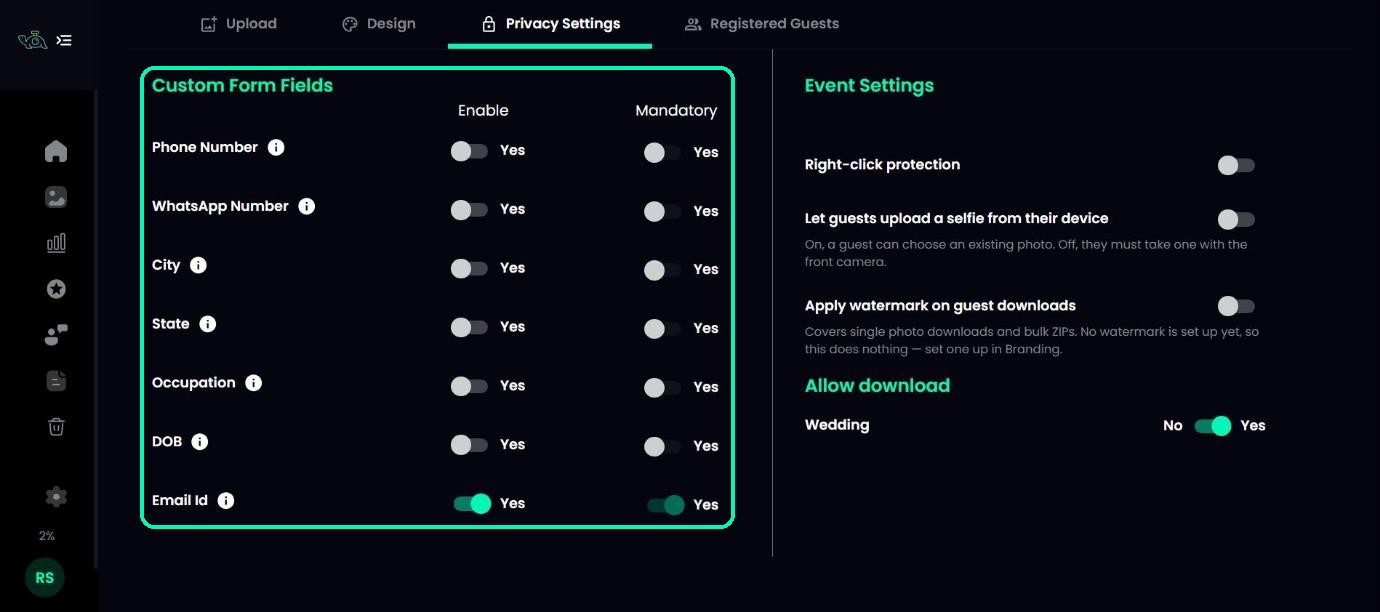
Open your event and go to the Privacy Settings tab. Under Custom Form Fields, switch on the details you want to collect: Phone Number, WhatsApp Number, City, State, Occupation, DOB or Email Id. Use Mandatory to make a field required.
Note
On plans below Standard, Email Id is always switched on and required.
Tip
Ask only for what you’ll use. Fewer fields means more guests finish registering and find their photos.
Open Registered Guests
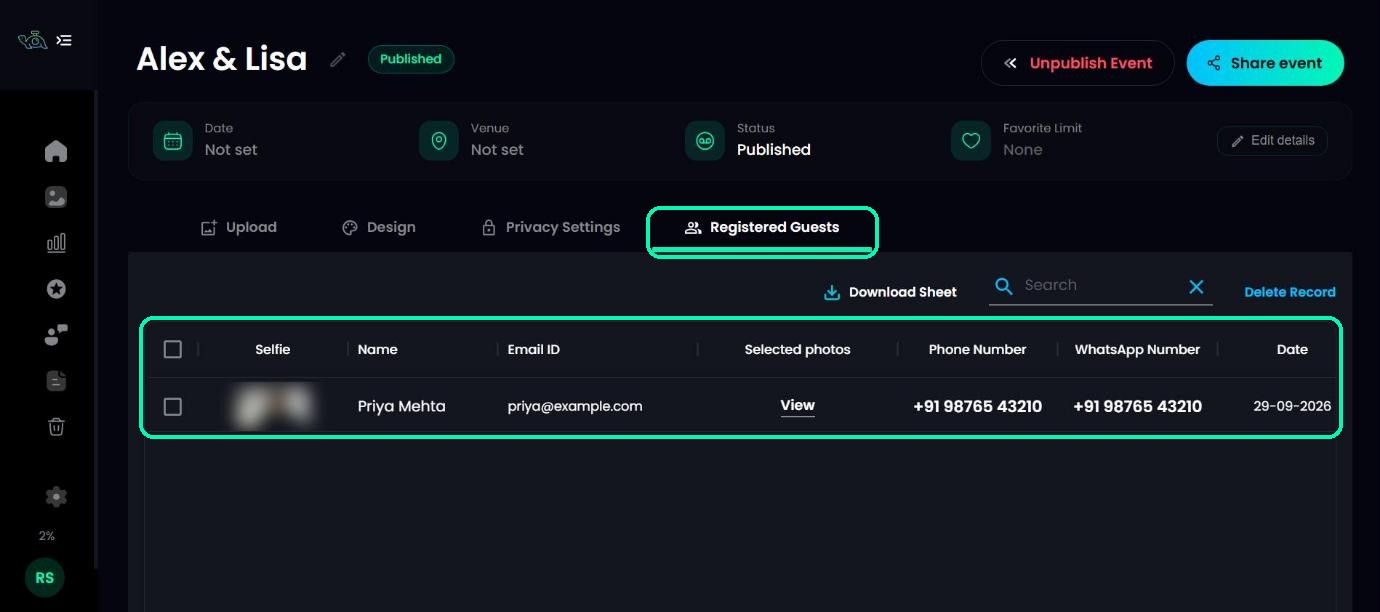
Click the Registered Guests tab. You’ll see one row per guest, with their selfie, Name, Email ID, a View link for the photos they selected, the date they registered, and any other details you asked for. Use the search box to find someone quickly.
See the photos a guest selected
Click View under a guest’s Selected photos to see the photos they picked. From there you can download them as a ZIP, or export their file names for Lightroom.
Download the list
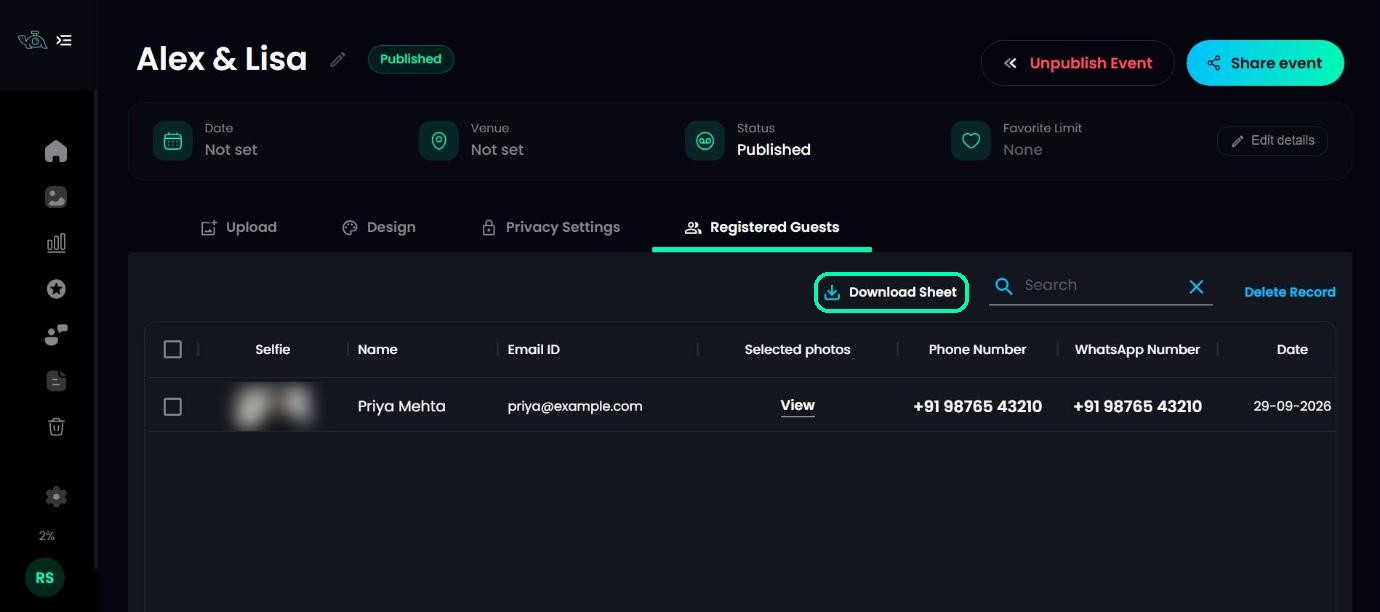
Click Download Sheet to save the whole list as a spreadsheet, ready for your CRM, a thank-you email or your next promotion.
Remove a guest
Tick one or more guests and click Delete Record to remove them from the list.
Note
Check your selection before deleting. Download the sheet first if you might need the details later.
On your phone
The Registered Guests list is only available on a computer for now. In the TurtlePic mobile view, the tab shows Best viewed on desktop.
Emailing your registered guests
To send your gallery to everyone on this list, use Send by email and tick Notify registered guests.
Was this article helpful?
Your answer helps us improve this guide.
Thanks for letting us know.