
Allow or block guest downloads
Choose, folder by folder, whether guests can download your photos.
On this page6 sections
Decide which photos guests can download. Downloads are set per folder, so you can, for example, let guests download the reception photos but keep the ceremony folder view-only.
Before you start
- An event with at least one photo folder.
Open Allow download
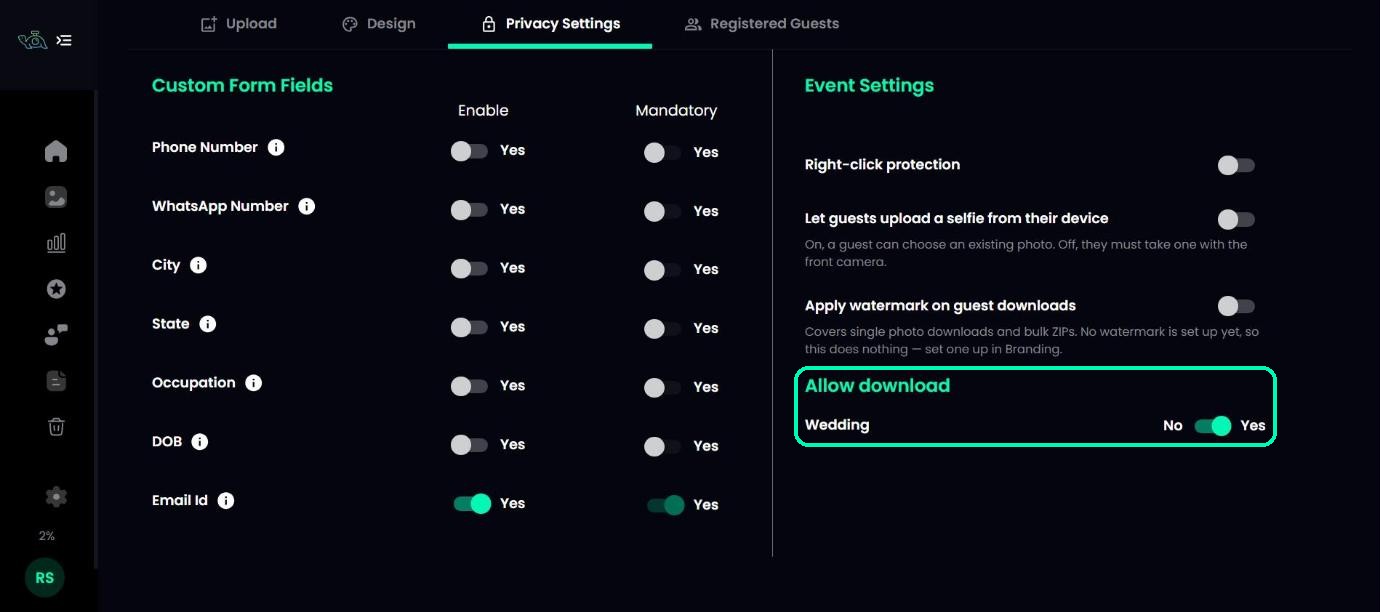
Open your event, click the Privacy Settings tab and find the Allow download section. Each photo folder has its own switch.
Switch downloads on or off
Set a folder to Yes to let guests download its photos, or No to keep them view-only. The change saves by itself and applies to your gallery straight away.
Note
New photo folders allow downloads by default. Videos can’t be downloaded by guests, so video folders don’t appear in this list.
What guests see
In a folder with downloads switched off, guests can still view and search their photos. If they try to download one, they see Downloading media is not allowed in this folder.
Tip
Want guests to download, but with credit to you? Keep downloads on and switch on Apply watermark on guest downloads.
On your phone
The Allow download switches are only available on a computer for now.
Was this article helpful?
Your answer helps us improve this guide.
Thanks for letting us know.