
Your event’s privacy settings, explained
What every setting in Privacy Settings does: guest form fields, selfie options, right-click protection, watermark and downloads.
On this page6 sections
Each event has its own Privacy Settings. They control what guests fill in, how they take their selfie, and what they can download. Here’s what every setting does.
Note
Privacy Settings save automatically. Each switch saves as soon as you change it, and you’ll see Saved Successfully!. If your event is published, guests get the new setting straight away.
Open Privacy Settings
Open your event and click the Privacy Settings tab.
Guest form fields
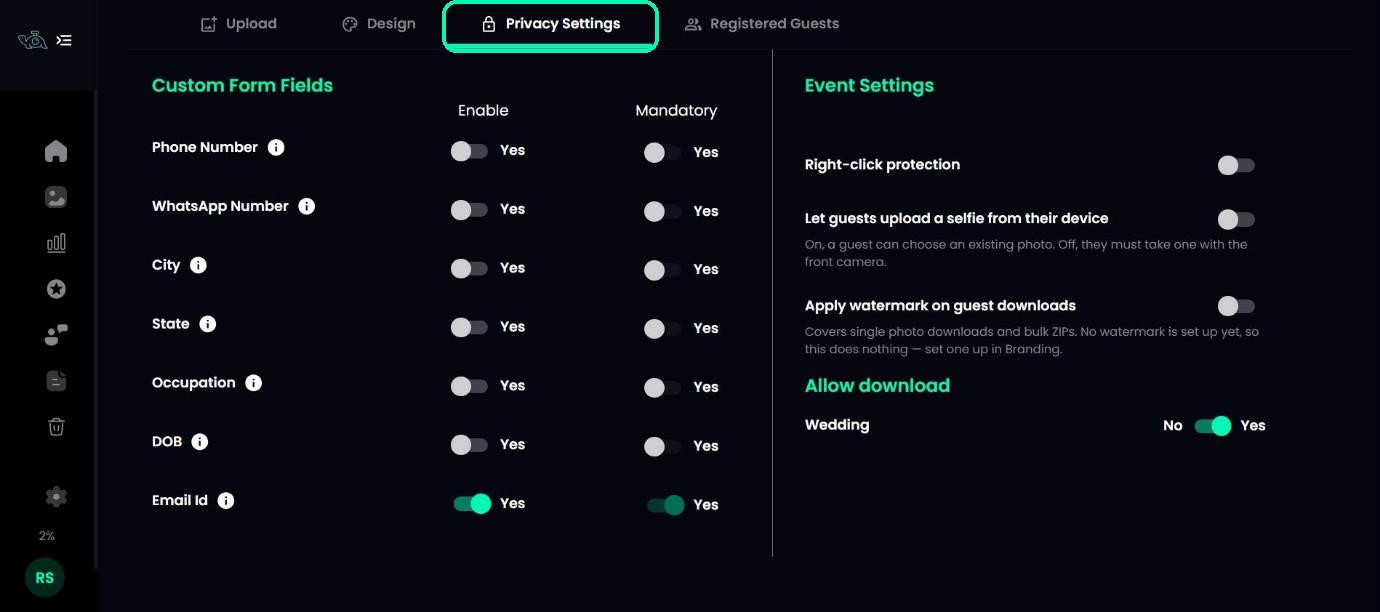
Under Custom Form Fields, choose which details guests fill in when they search for their photos: Phone Number, WhatsApp Number, City, State, Occupation, DOB and Email Id. Enable adds the field; Mandatory makes it required. You’ll find their answers in Registered Guests.
Note
On plans below Standard, Email Id is always switched on and required.
Event settings
- Right-click protection – stops guests right-clicking photos in your gallery to save them.
- Let guests upload a selfie from their device – when on, guests can choose an existing photo for their selfie search. When off (the default), they take a new selfie with their front camera.
- Apply watermark on guest downloads – adds the watermark from Branding to single-photo downloads and ZIP downloads.
Allow download
Under Allow download, each photo folder has its own Yes/No switch, so you can let guests download some folders and not others.
On your phone
In the TurtlePic mobile view, the same form fields and event settings are stacked in one column, and they save by themselves too. The Allow download switches for each folder are only on a computer.
Was this article helpful?
Your answer helps us improve this guide.
Thanks for letting us know.