
Buy and manage WhatsApp credits
Buy message credits, see what messages cost, and how refunds and expiry work.
On this page7 sections
WhatsApp broadcasts are paid for with message credits. You buy credits in advance, and each message uses some of them. Here’s how to buy credits, what they cost, and what happens to unused ones.
Note
Credits are available on every paid plan, and anyone in your team can buy them. On the Free plan you’ll see Credits aren’t available on the Free plan.
Open Credits
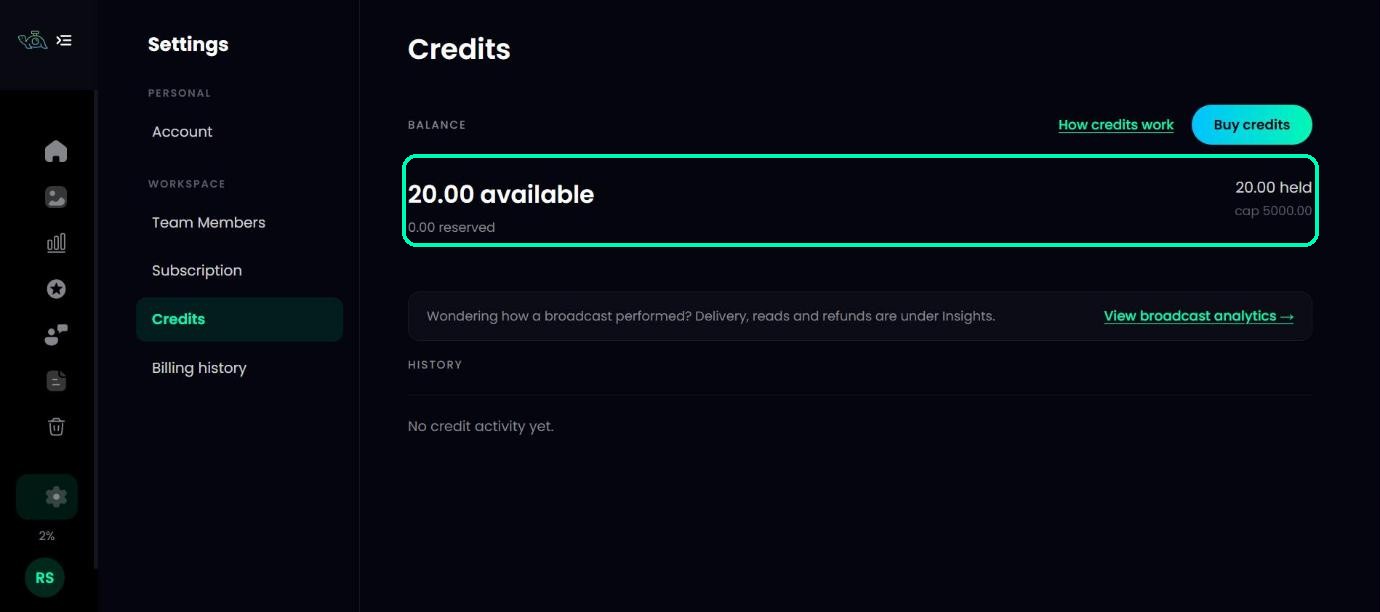
Go to Settings and open Credits. At the top, Balance shows how many credits you have available and how many are held for broadcasts that are still sending. Below it, History lists every change to your balance.
Buy credits
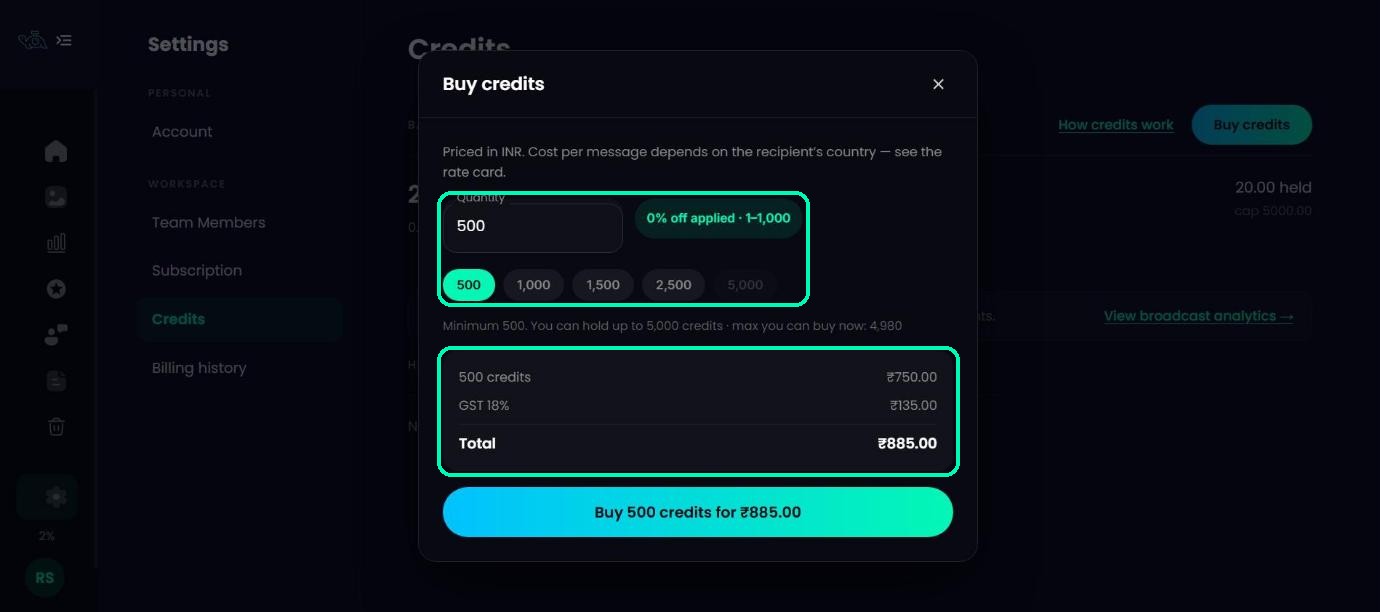
Click Buy credits, choose how many you want (at least 500) and check the total, then pay. Your credits appear in your balance as soon as the payment is confirmed.
- Buy more than 1,000 credits and get 5% off.
- Buy more than 2,000 credits and get 10% off.
- Prices in India include GST.
Note
Your balance can hold up to 5,000 credits at a time.
How much a message costs
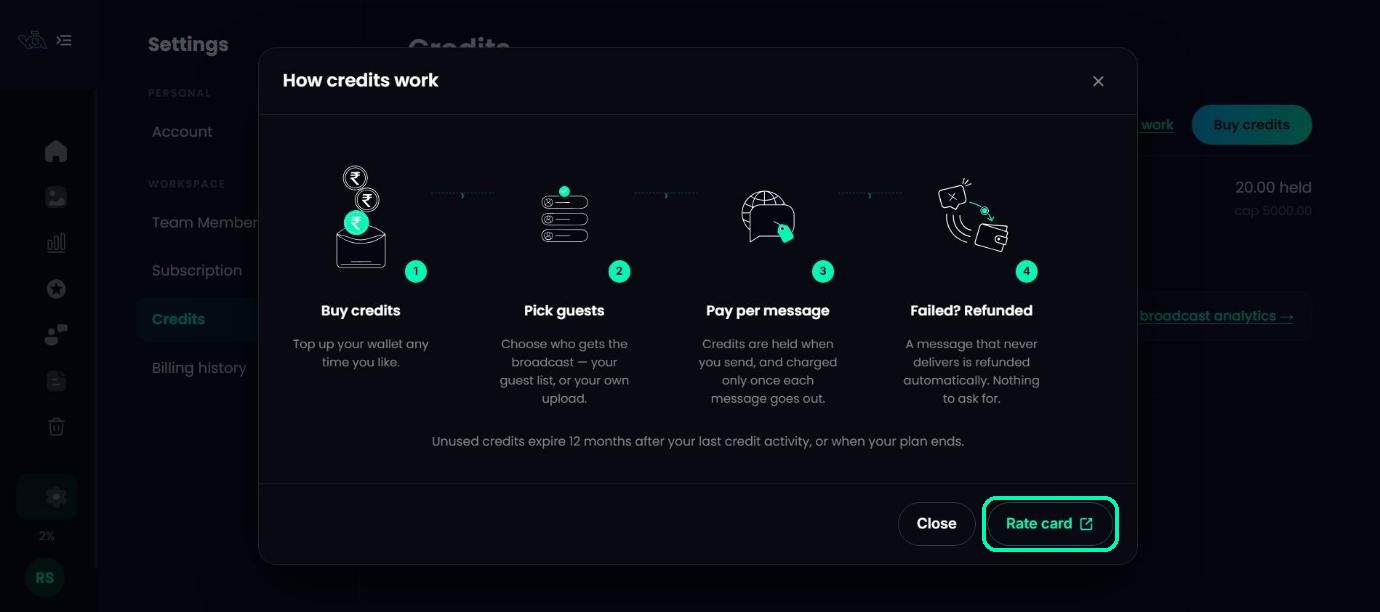
A message to an Indian number uses 1 credit. Messages to other countries use more. Click How credits work and open the Rate card to see the rate for each country. A test message costs the same as a normal one.
When credits are charged
When you send a broadcast, the credits it needs are held. Each message is charged once it goes out. If WhatsApp rejects a message, its credits are refunded to your balance automatically within 48 hours. There’s nothing to ask for.
When credits expire
Unused credits expire 12 months after your last credit activity, such as buying credits or sending a broadcast, or when your paid plan ends. Your balance shows the expiry date when it’s getting close.
Check your history
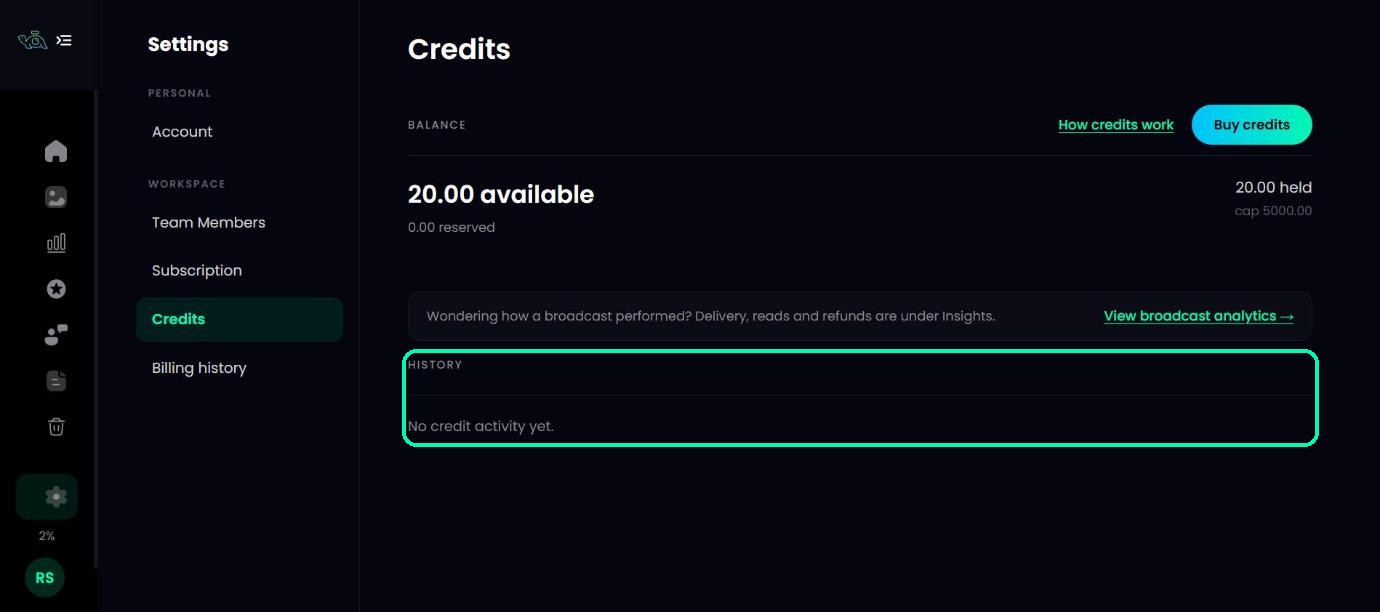
The History table shows the Date, Type, Detail, Credits and Balance after for every purchase, broadcast, test, refund and expiry. Download the invoice for any purchase from its row.
Was this article helpful?
Your answer helps us improve this guide.
Thanks for letting us know.