
Add guests to a WhatsApp broadcast
Pick registered guests, upload a CSV or Excel list, or add contacts by hand.
On this page5 sections
The first step of a WhatsApp broadcast is choosing who gets it. You can pick guests who registered for your event, upload your own list, or add people one by one, and mix all three.
Pick from your guest list
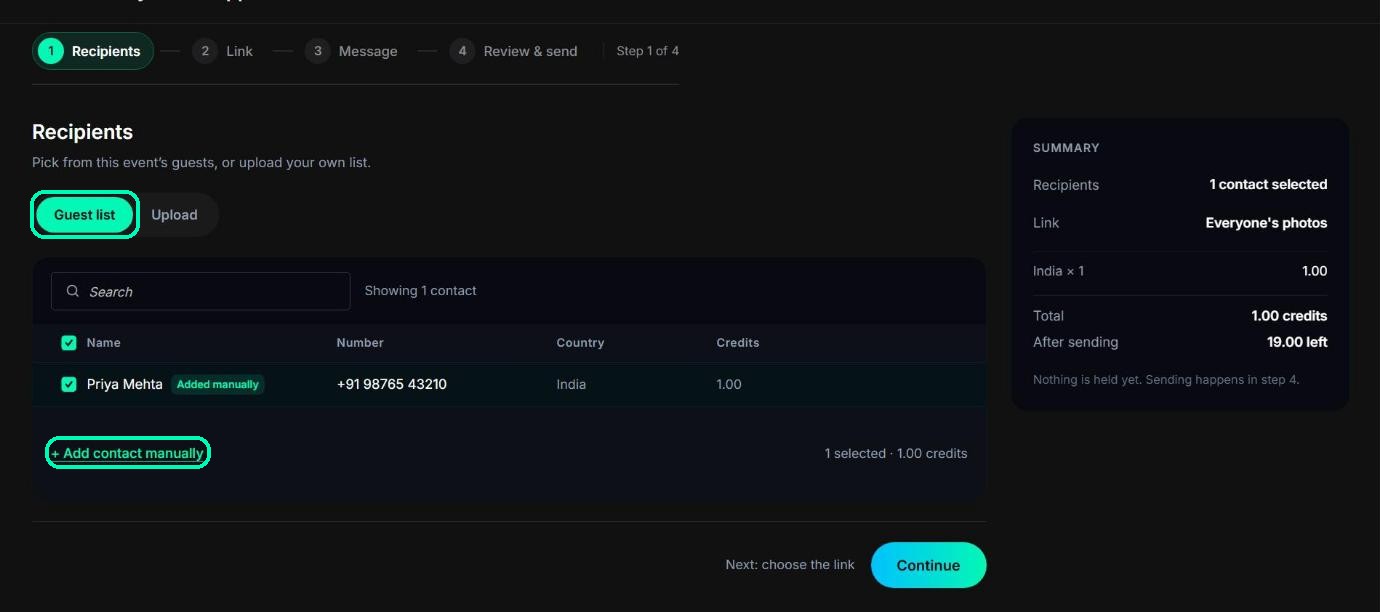
In the Recipients step, the Guest list tab shows everyone who registered for this event with a WhatsApp number. Tick the guests you want to send to.
Note
Guests without a usable WhatsApp number are left out automatically, for example email-only registrations or landline numbers. Click the skipped label to see who and why.
Add a contact by hand
Click + Add contact manually and enter the person’s name and WhatsApp number.
Upload a list
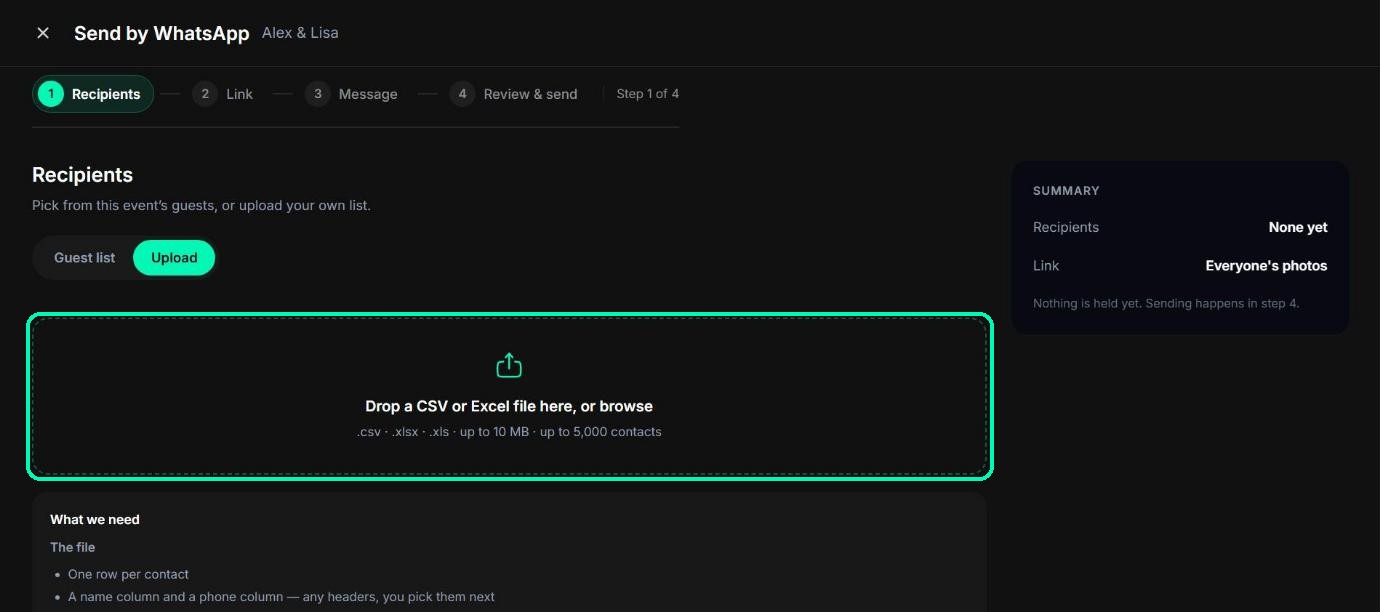
Open the Upload tab and drop in a .csv, .xlsx or .xls file, up to 10 MB and 5,000 contacts.
In Check your contacts, choose which columns hold the name and the phone number, and pick a default country code for numbers that don’t have one. TurtlePic shows how many contacts are ready, how many it fixed for you, and how many can’t be used. Click Save {number} contacts.
Tip
Include the country code with each number, for example +91, so every contact is ready to go.
Good to know
- Duplicate numbers are merged, so no one gets the message twice.
- Spaces, dashes and brackets in phone numbers are cleaned up automatically.
- You can send to up to 800 contacts in one broadcast. If you pick more, you’ll see Untick {number} contacts to continue.
Was this article helpful?
Your answer helps us improve this guide.
Thanks for letting us know.