
How guests send you an enquiry
Every gallery has an Enquire button, so guests who love your photos can ask about booking you. Here’s what they see and what you receive.
On this page6 sections
Guests who enjoy your gallery are often planning an event of their own. The Enquire button lets them reach you in a few seconds, and every enquiry lands in your dashboard and your inbox.
Before you start
- Your brand name and logo added in Branding → Profile Details.
- A published event that guests can open.
Guests click Enquire
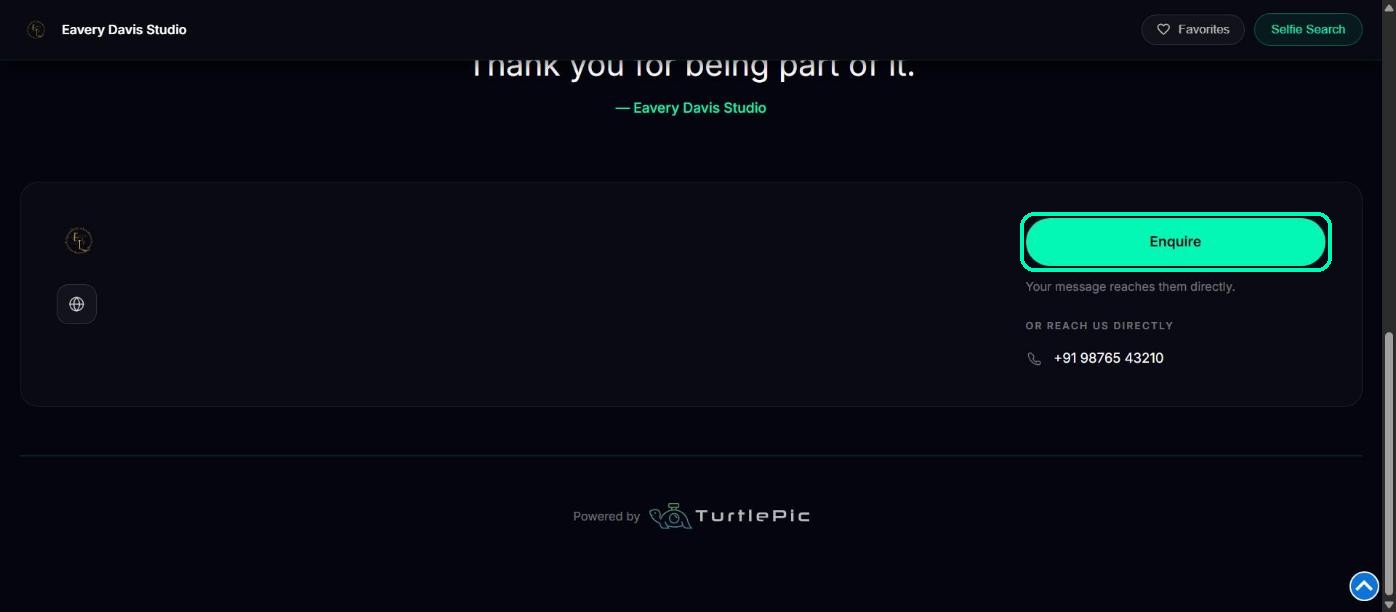
At the bottom of every gallery, guests see your studio card with an Enquire button. Clicking your logo or brand name at the top of the gallery opens the form too.
Guests fill in the form
The form opens in a new tab with your logo, brand name and enquiry page title. Guests enter their Name, Email and Phone number, add any Remarks, and click Submit.

Note
The Enquire button appears on all your galleries, and the form asks the same questions for every event.
You both get a message
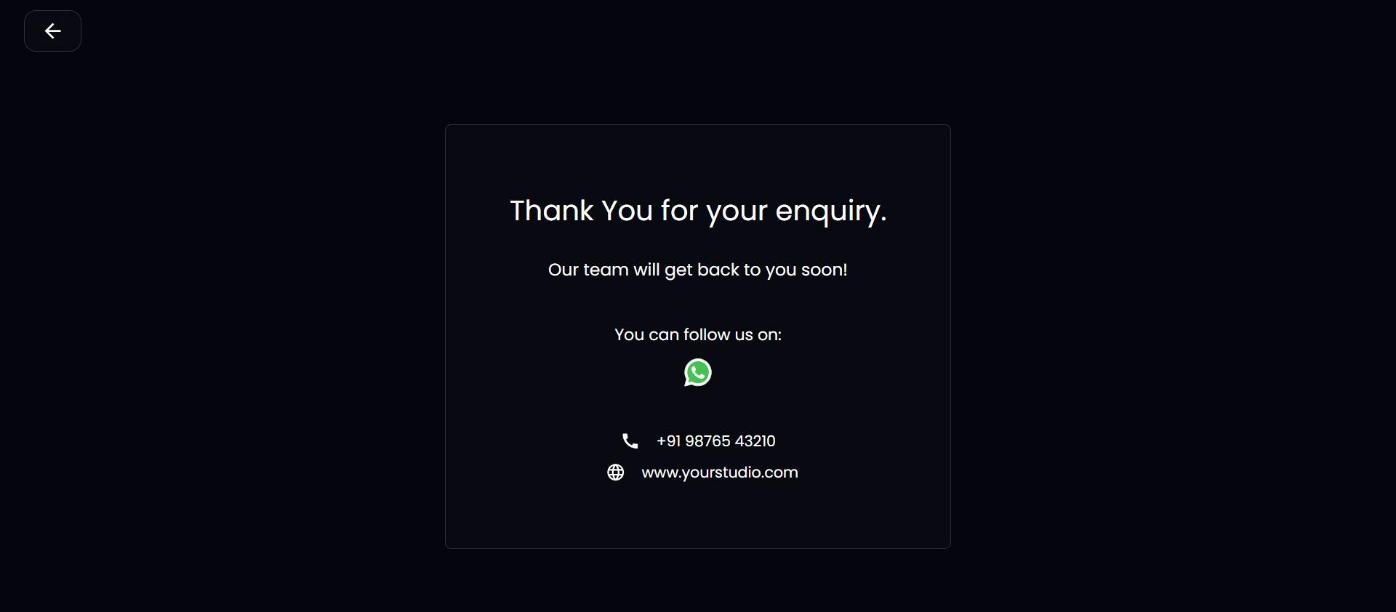
The guest sees a thank-you page with your contact details and social links, and receives a confirmation email from your studio.
You receive a New Lead email with the guest’s details and the event they enquired from. The enquiry also appears in Enquiries in your dashboard.
Set your enquiry page title
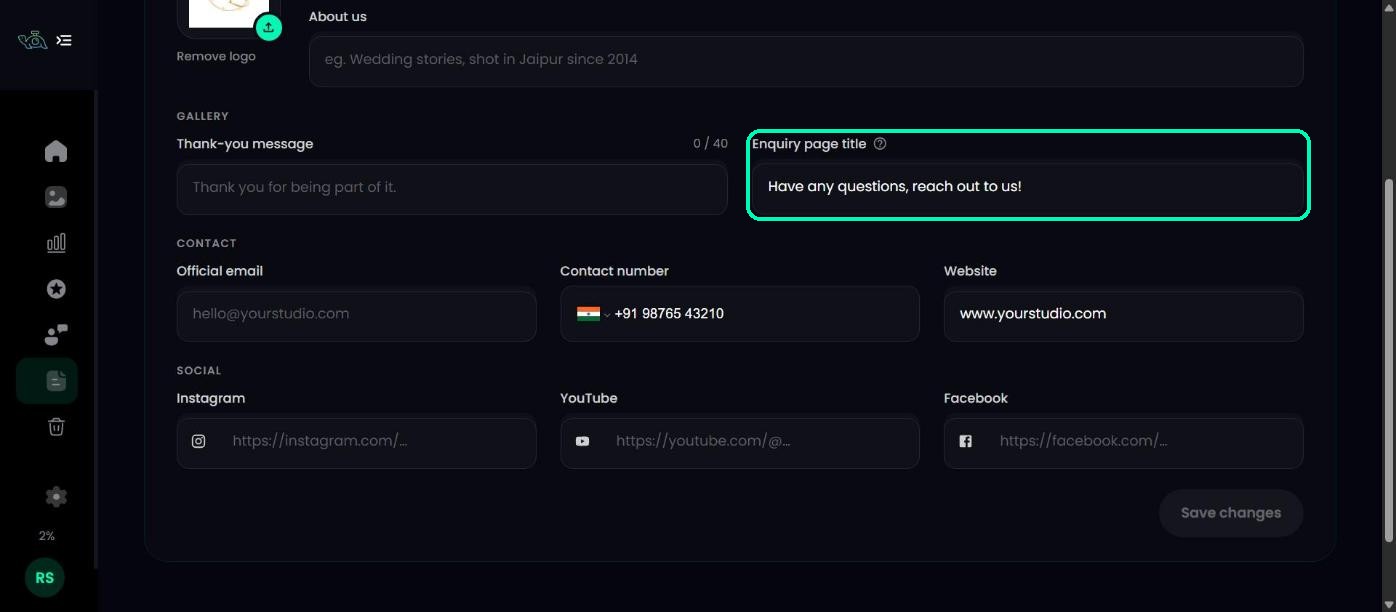
Go to Branding → Profile Details and type a short line in Enquiry page title, for example “Plan your wedding with us”. It appears under your brand name at the top of the form. Click Save changes.
Tip
Add your contact number, official email, website and social links in the same place. They show on the thank-you page and in the guest’s confirmation email.
Was this article helpful?
Your answer helps us improve this guide.
Thanks for letting us know.