
View and manage your enquiries
See every enquiry from your galleries in one place, find one fast and read the full message.
On this page6 sections
Every enquiry a guest sends from one of your galleries is saved in Enquiries, newest first.
Before you start
- Open TurtlePic on a computer. Enquiries isn’t available on phones.
Open Enquiries
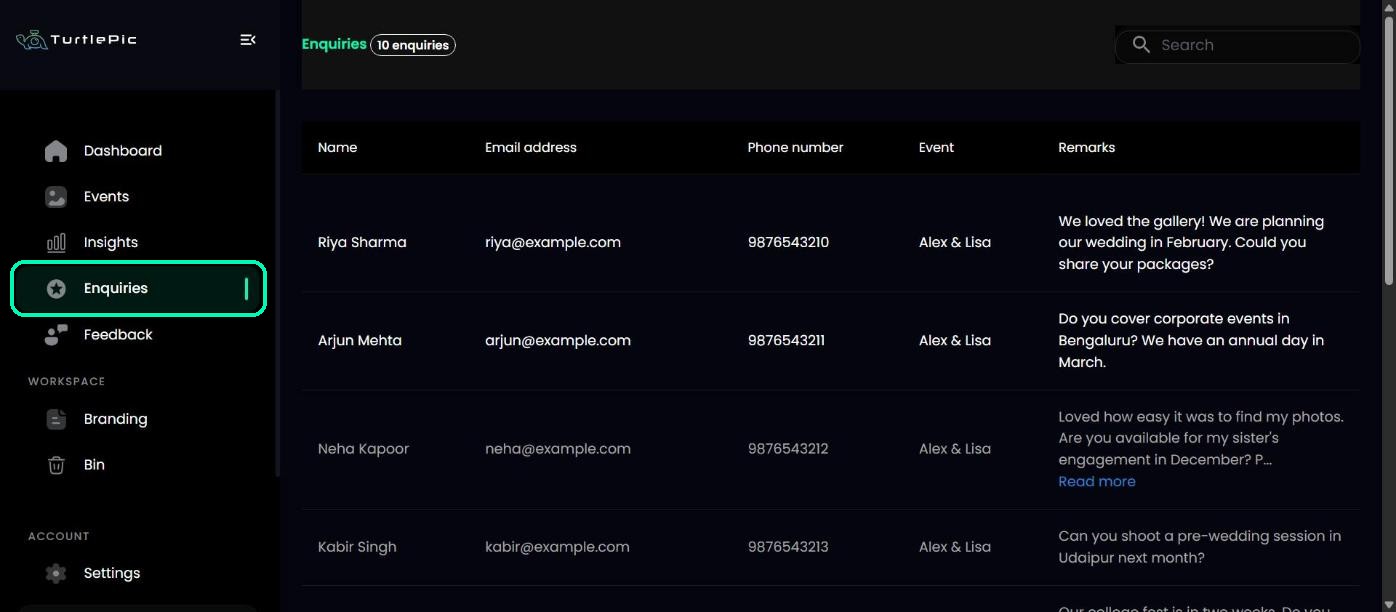
In the left menu, click Enquiries.
Read an enquiry
Each row shows the guest’s Name, Email address, Phone number, the Event they enquired from and their Remarks. Click Read more to see a long message in full.
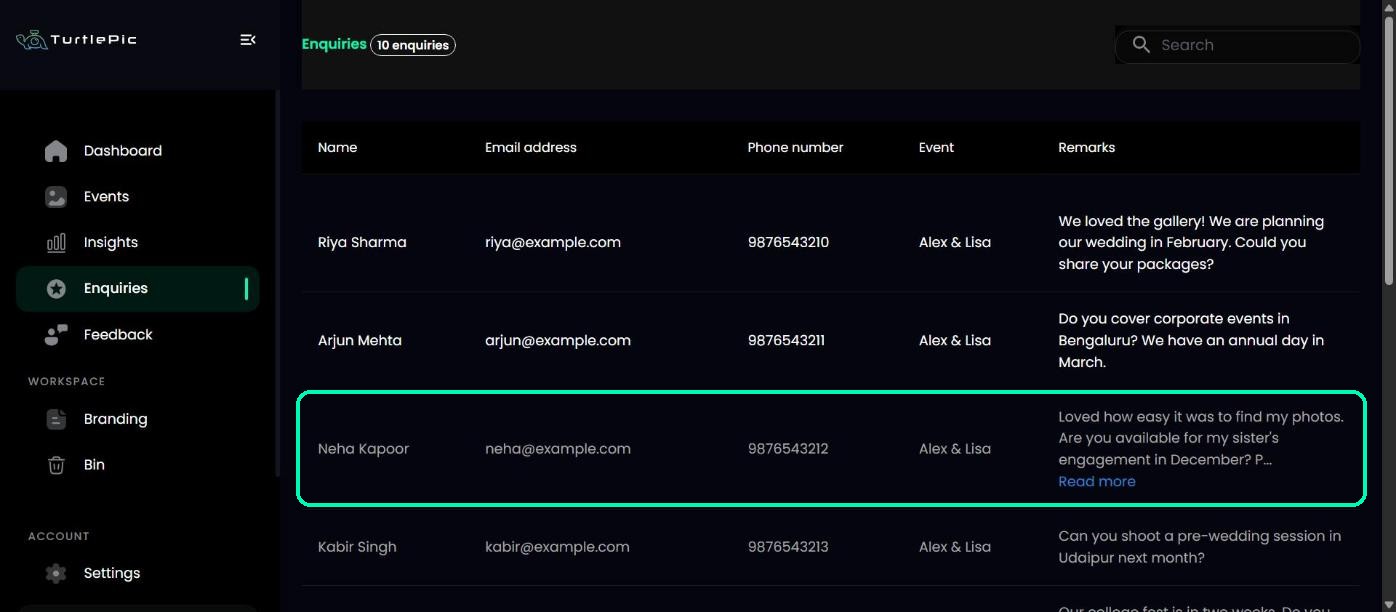
New enquiries show in white. Once you open one, it turns grey, so you can tell at a glance which ones you’ve read.
Find an enquiry
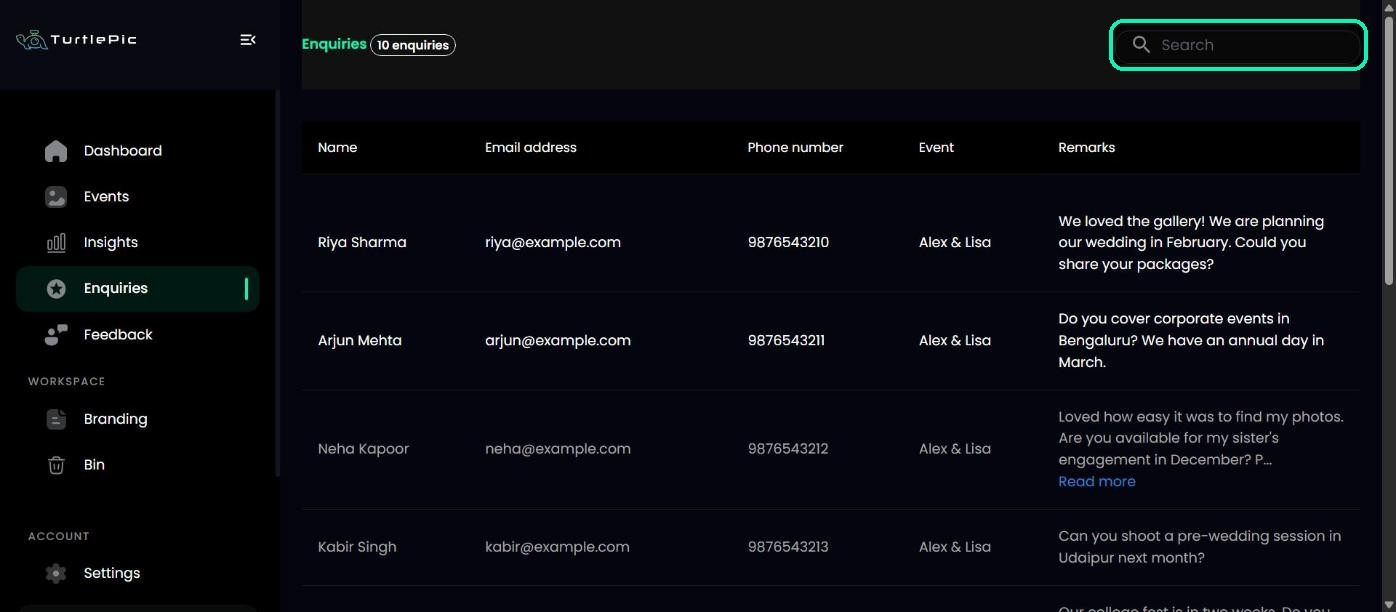
Type a name, email address, phone number or event name in Search. Enquiries show 10 to a page; use Next and Previous to see older ones.
Reply to the guest
Contact the guest directly by email or phone. You also get an email for every new enquiry as it arrives, so you can reply straight from your inbox.
Tip
Reply the same day if you can. Guests are most interested right after they’ve enjoyed their photos.
Was this article helpful?
Your answer helps us improve this guide.
Thanks for letting us know.