
Set up your profile details
Add your studio name, logo, contact details and social links once, and they appear on every gallery and your enquiry page.
On this page8 sections
Your profile details tell guests who took their photos. Fill them in once and they appear on every gallery you share, and on your public enquiry page.
Before you start
- Your logo as an image file. A PNG with a transparent background looks best on dark and light galleries.
- Your studio’s email, phone number, website and social media links.
Open Branding
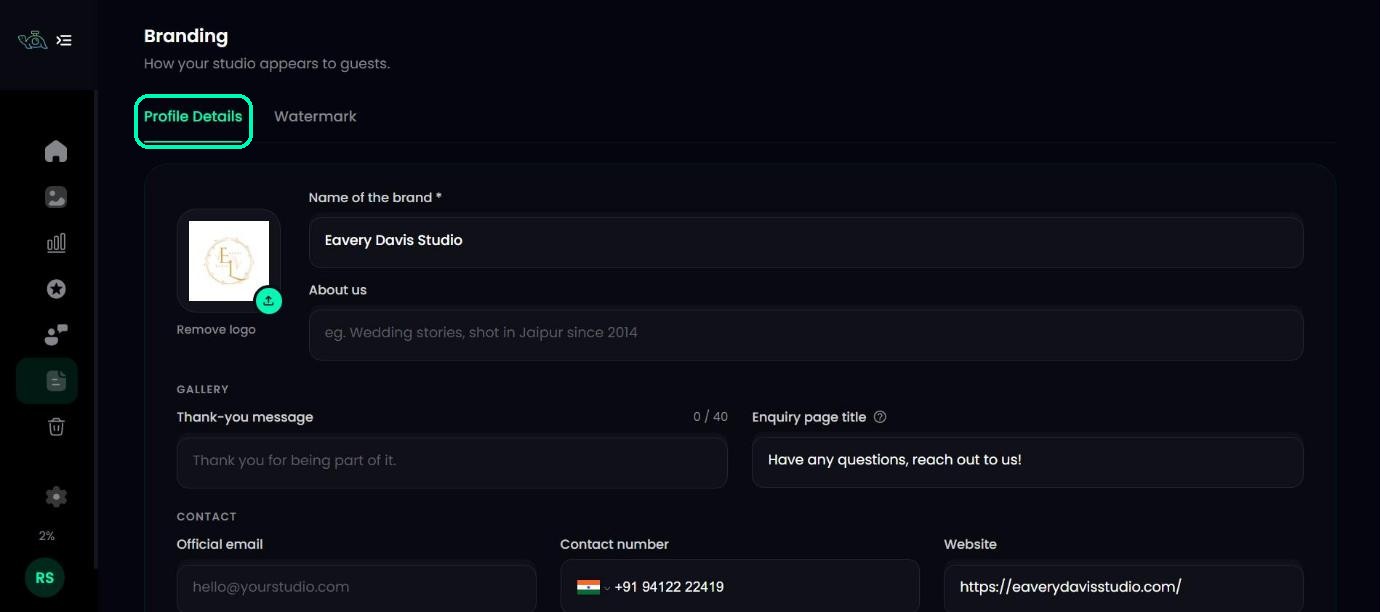
In the left sidebar of your dashboard, click Branding. The page opens on the Profile Details tab.
Add your logo
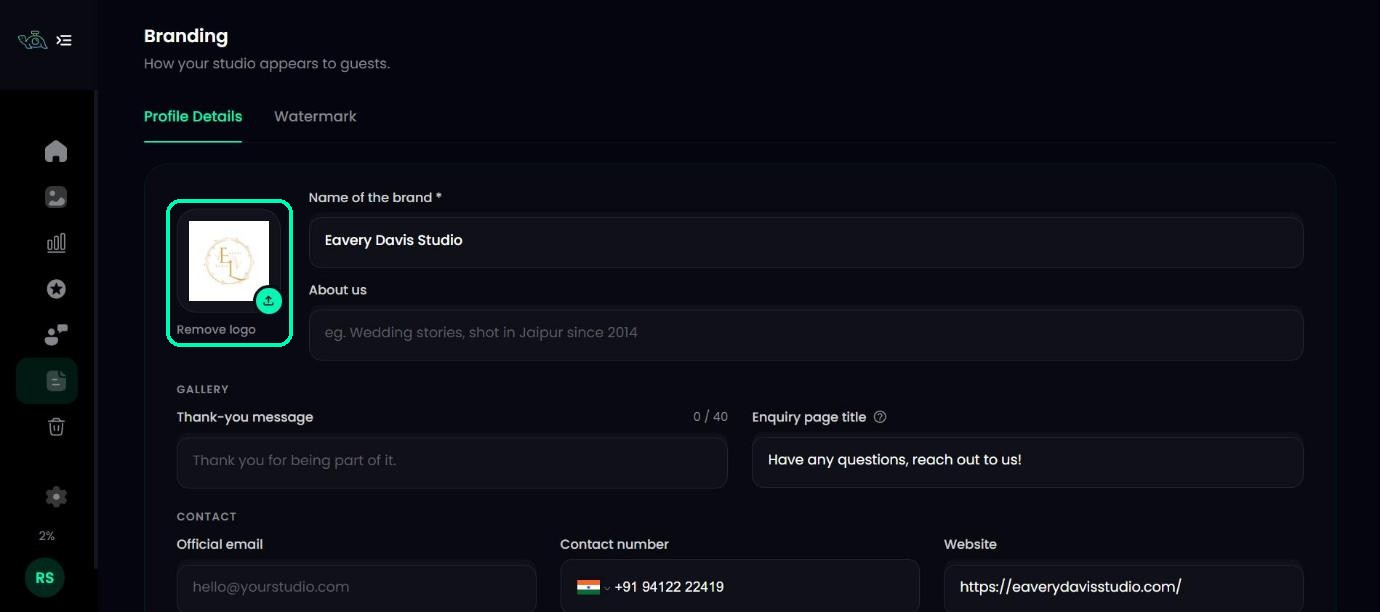
Click the logo box, or drag your logo file onto it. To change it later, upload a new one, or click Remove logo.
Note
On the Free plan the logo is marked Locked on Free, and your gallery covers show the TurtlePic logo. Any paid plan shows your own logo instead. Everything else on this page works on every plan.
Fill in your gallery details
Under Gallery, fill in:
- Name of the brand (required) – your studio’s name, up to 100 characters. It appears on your gallery covers.
- About us – a short line about your studio, up to 250 characters, e.g. Wedding stories, shot in Jaipur since 2014. Guests see it at the end of the gallery.
- Thank-you message – the closing line of every gallery, up to 40 characters.
- Enquiry page title – the heading under your brand name on your public enquiry page, the form guests use to contact you.
Add your contact and social links
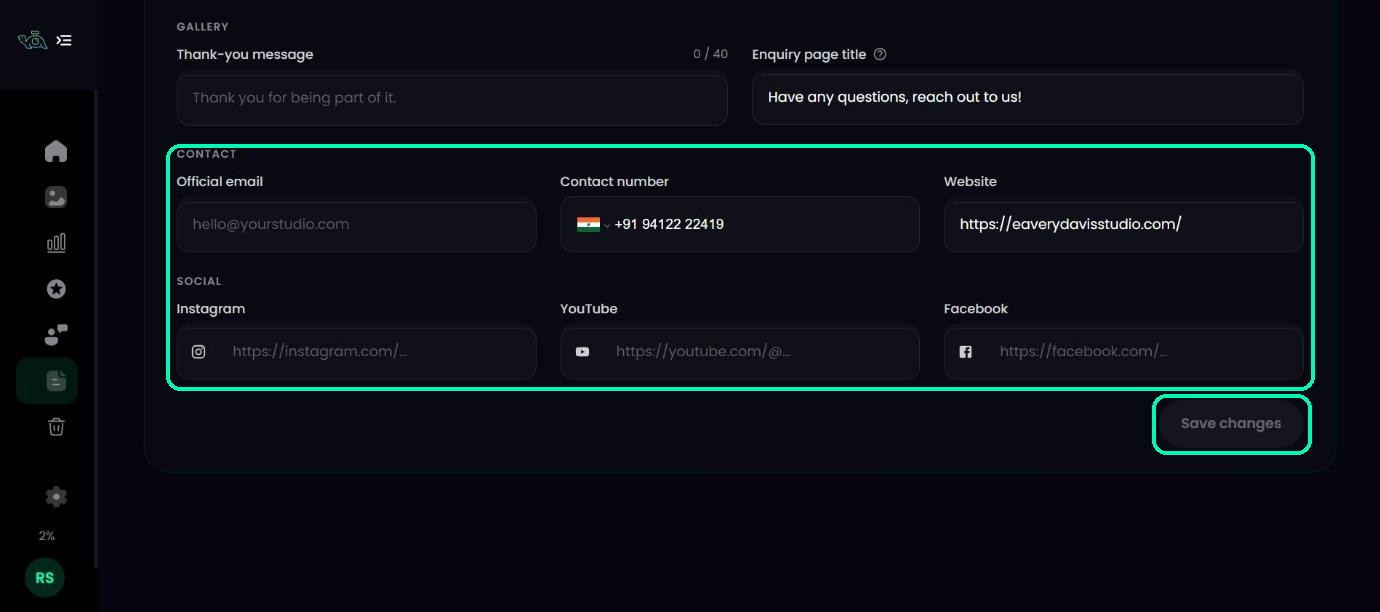
Under Contact and Social, add your Official email, Contact number, Website, and your Instagram, YouTube and Facebook links. Guests can use them to reach you or follow your work.
Tip
Paste the full link, starting with https://, for your website and social pages.
Save your changes
Click Save changes at the bottom of the page. Your details update on all your galleries.
Editing on your phone
You can update your logo, brand name, contact details and social links from the TurtlePic mobile view too. About us and the Thank-you message can only be edited on a computer.
Was this article helpful?
Your answer helps us improve this guide.
Thanks for letting us know.