
Download your invoices
Find any payment in Billing history and download its invoice.
On this page4 sections
Every payment you make to TurtlePic has an invoice you can download for your records or your accountant.
Open Billing history
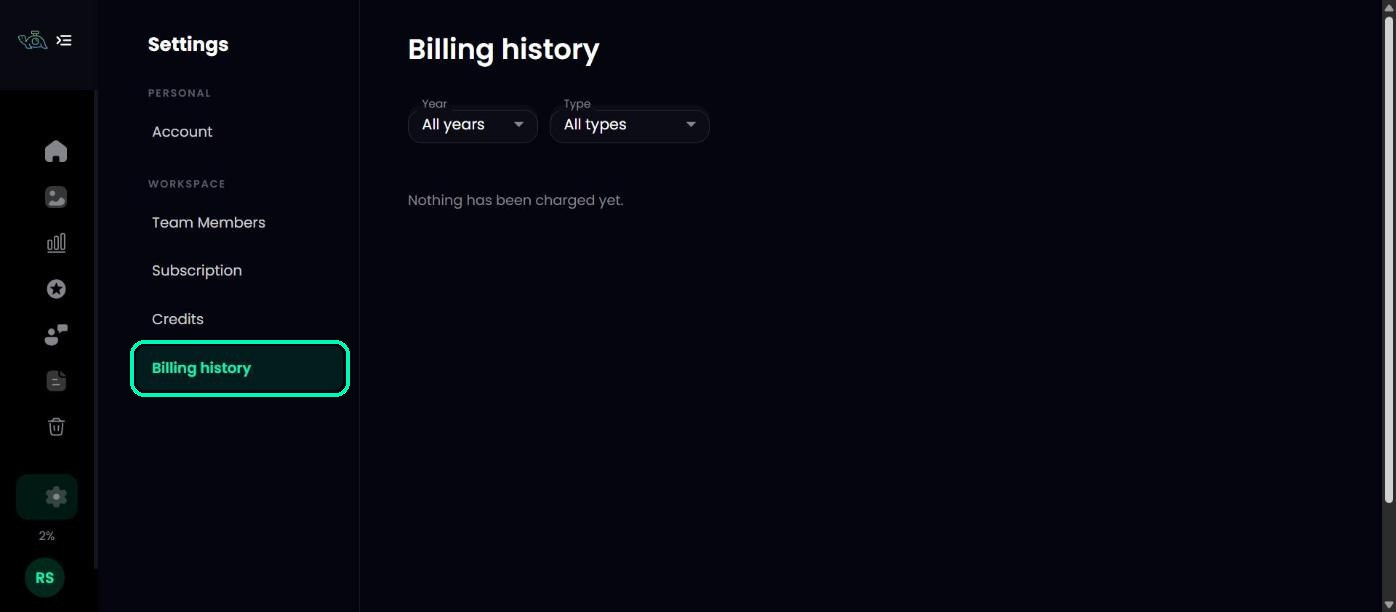
Go to Settings and open Billing history. Each row shows the Payment (what you bought), the Date, the Total and the Status.
Find a payment
Use the year and type filters to narrow the list. The summary line shows how many payments you’ve made and the total, including GST.
Download the invoice
Click the download icon at the end of a row. If the invoice is still being prepared, the icon tells you, so try again in a moment.
Tip
Need your GSTIN on the invoice? Add it on the payment page when you buy or renew a plan in rupees.
Can’t find an invoice? Email support@turtlepic.com.
Was this article helpful?
Your answer helps us improve this guide.
Thanks for letting us know.