
Turn auto-renewal on or off, or cancel your plan
Let your plan renew by itself, or cancel it without losing the time you’ve paid for.
On this page6 sections
Choose whether your plan renews by itself, or cancel it. Cancelling never switches your plan off early: it keeps running until the end of the time you’ve paid for.
Find Auto-renewal
Go to Settings → Subscription. Under Payment information, the Auto-renewal row shows whether it’s on and, if so, your next charge and date.
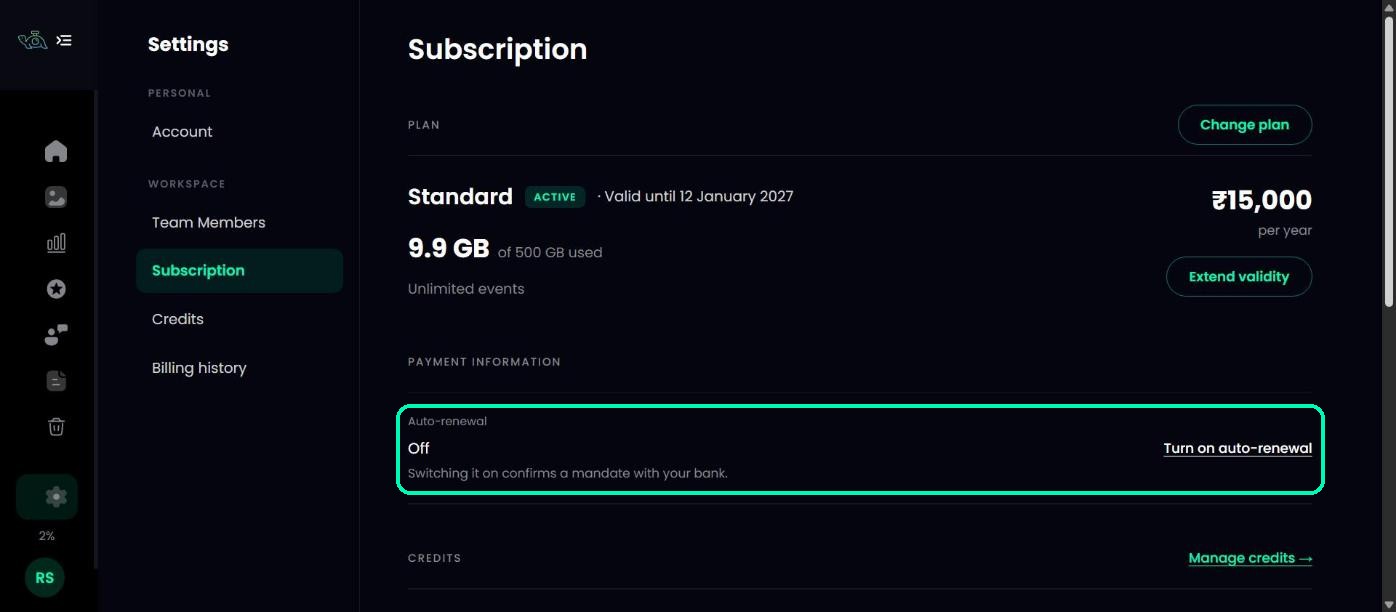
Turn auto-renewal on
Click Turn on auto-renewal and approve it once with your bank. That single approval covers every renewal. If the approval isn’t finished yet, you’ll see Finish setting up.
Cancel your plan
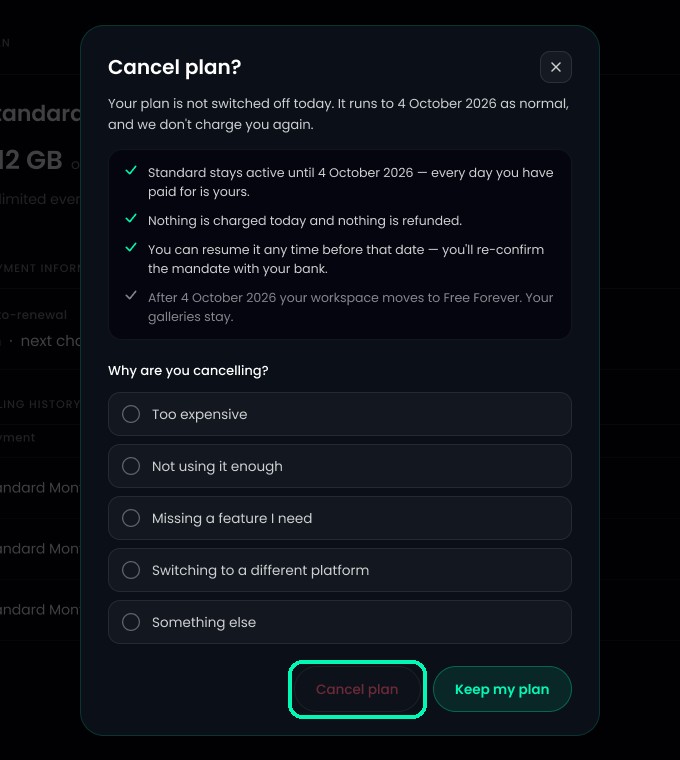
Click Cancel plan. Before you confirm, TurtlePic shows exactly what happens:
- Your plan stays active until the end of your current term, so every day you’ve paid for is yours.
- Nothing is charged today and nothing is refunded.
- You can resume it any time before that date.
- After that date, your account moves to Free Forever. Your galleries stay.
Choose a reason and confirm. Changed your mind? Click Keep my plan instead.
Resume your plan
Cancelled by mistake? Click Resume plan before your plan ends and re-confirm with your bank.
Not on auto-renewal?
Click Extend validity in Subscription to pay for another term before your plan ends.
Was this article helpful?
Your answer helps us improve this guide.
Thanks for letting us know.